System settings
Select System in ORIA Control to open the System Panel.
The System Panel contains two pages:
- General
- Remotes
General settings
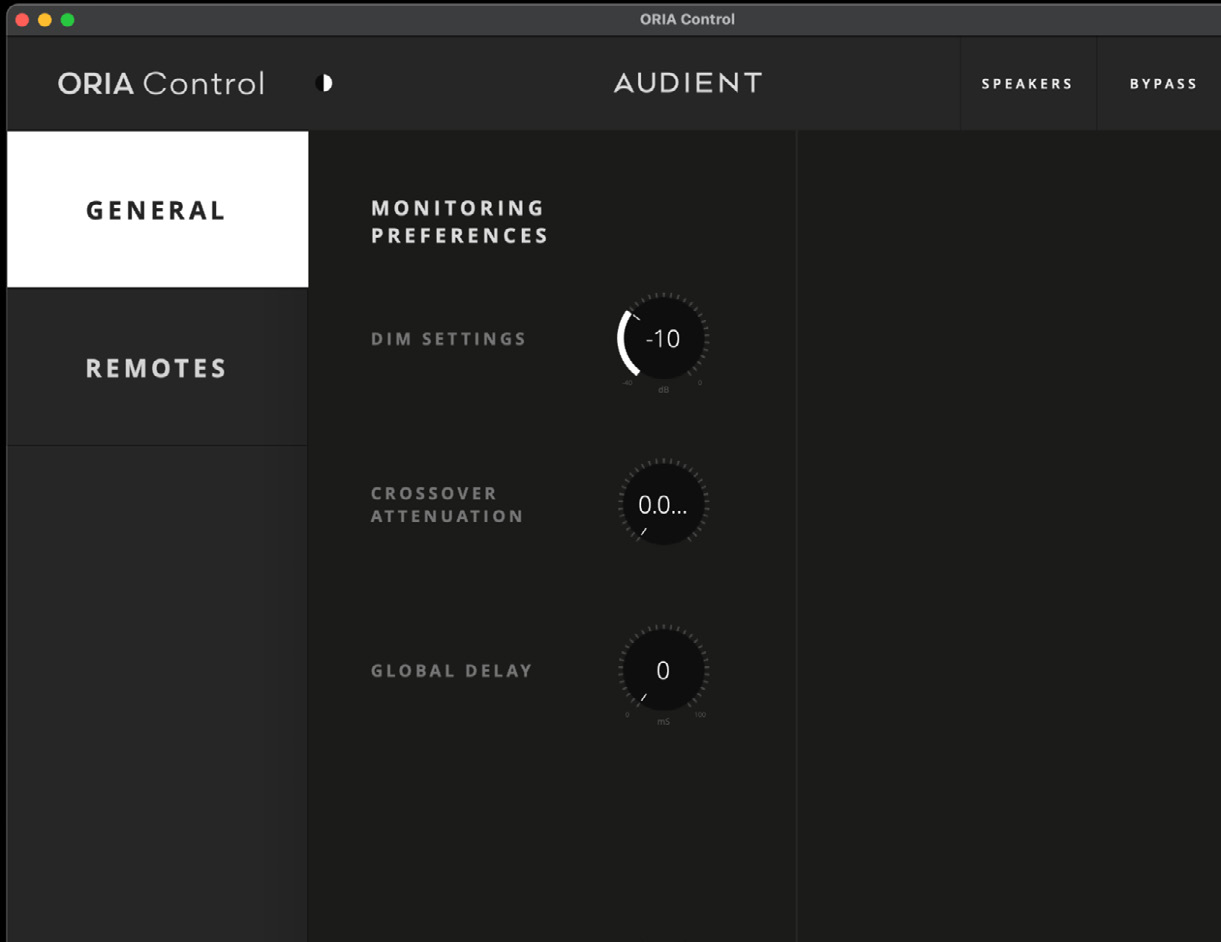
DIM trim
Use DIM Trim to set how much the speaker level is reduced when Dim is enabled.
Crossover attenuation
Use Crossover Attenuation to reduce the level of signals sent to the Subwoofer output through the crossover controls.
The available attenuation range is from 0 dB to −10 dB.
Global delay
Use Global Delay to apply a time delay to all ORIA Mini outputs.
This can be used to synchronise audio with video playback.
Remote-control settings
The Remotes page controls which devices have remote control over ORIA Mini.
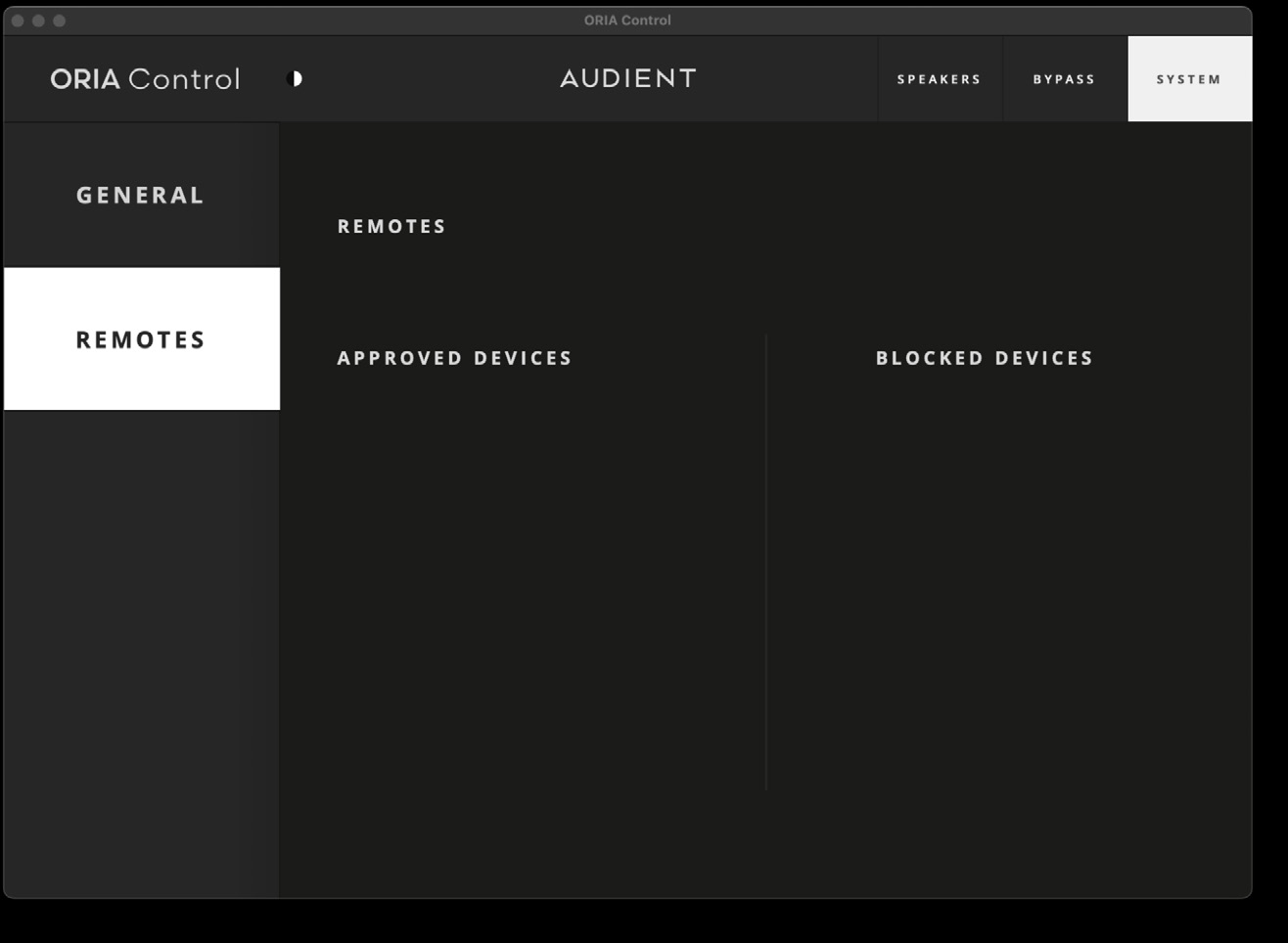
Remote-control options are covered in more detail in Remote Control and Integrations.
Responding to a connection request
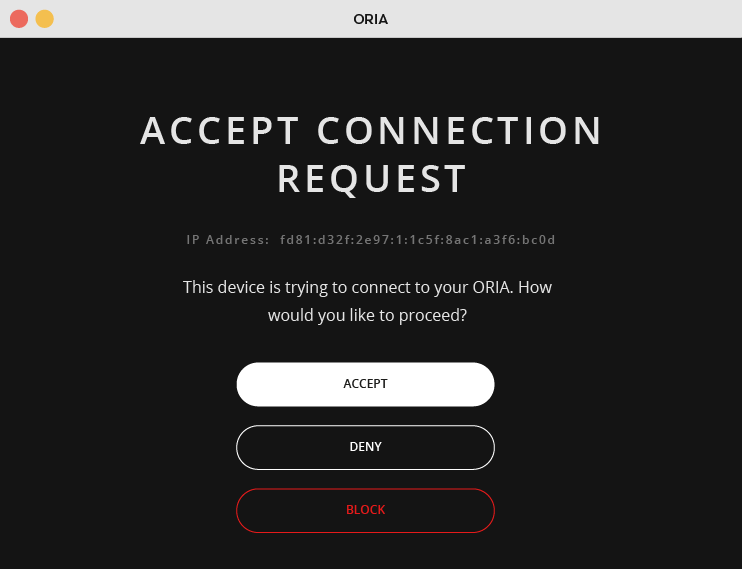
When a remote device attempts to connect, ORIA Control displays a connection request.
You can:
- Accept the connection
- Deny the request
- Block the device
Accepting a device
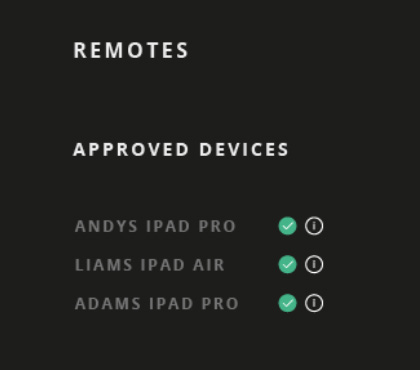
When a device is accepted:
- It is added to the Approved Devices list.
- It can connect automatically when it is on the same network.
- A green tick appears beside it while it is connected.
Blocking a device
When a device is blocked:
- It is not connected to ORIA Mini.
- It cannot send further connection requests.
- It is added to the Blocked Devices list.
Blocking can be useful in facilities containing multiple ORIA Mini systems or where remote access needs to be restricted.
Forgetting an approved device
To remove a device from the Approved Devices list:
- Open the Remotes page.
- Select the information icon beside the device.
- Confirm that you want ORIA Control to forget it.
The device is removed from the Approved Devices list.
Unblocking a device
To remove a device from the Blocked Devices list:
- Open the Remotes page.
- Select the information icon beside the device.
- Confirm that you want to unblock it.
Once unblocked, the device can send connection requests again.