Monitoring and Output Controls
EVO 16 provides eight rear analogue line outputs, two independent headphone outputs and front-panel monitor controls for the main speaker path.
Output selection and monitoring
Headphone outputs
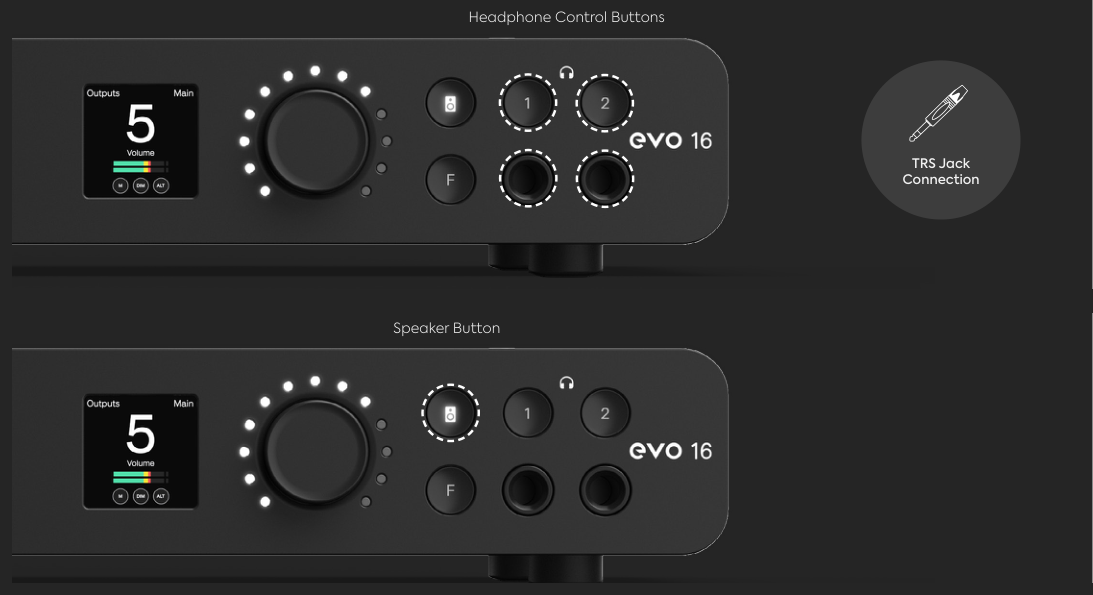
Headphone outputs 1 and 2 have independent hardware level control.
- Press headphone button 1 or 2.
- Turn the Control Wheel to set the selected headphone level.
- Use the Motion UI and LED ring to check the current setting.
The EVO software mixer can route different mixes to the two headphone outputs. That routing is covered in the software section of this manual.
Main speaker outputs
By default, press the Speaker button and turn the Control Wheel to adjust analogue outputs 1+2, which are used as the main monitor output.
EVO 16 has eight analogue line outputs in total. Routing and control for outputs other than the main monitor path are available in the EVO software mixer.
Output Status Screen
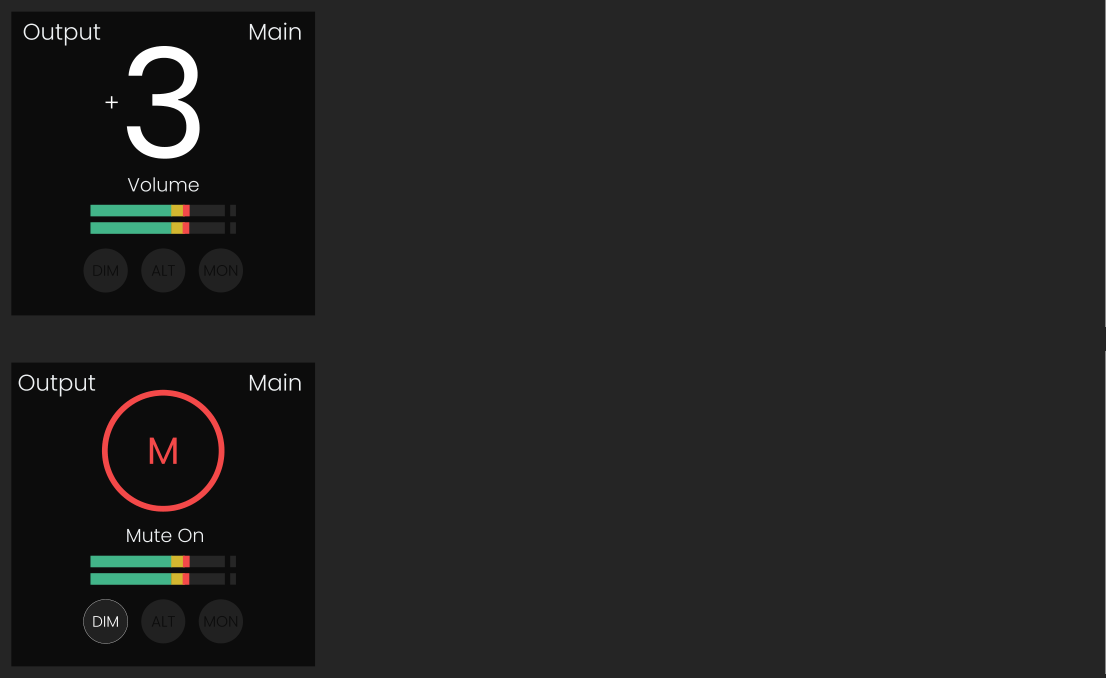
Pressing the Speaker or either headphone button opens the Output Status Screen for the selected output. The display shows the output name, relative volume level, stereo meters and the status of applicable monitor functions.
With that output selected, turn the Control Wheel to change its volume.
Mute an output
Press and hold the selected output button until the mute screen appears and the button begins flashing.
The Motion UI displays a mute icon while that output is muted. Press and hold the same output button again to restore it.
Programmable Function button
The front-panel F button can be assigned to one of four monitoring functions:
- Mono - sums the main stereo monitor path to mono for compatibility checking.
- Alt Speakers - switches the monitor path to the alternate speaker outputs configured in the EVO software mixer.
- Dim - reduces the main monitor level by the configured amount.
- Talkback - turns the configured talkback path on or off.
The Function button assignment can be changed from the Motion UI settings menu or through the EVO software mixer.
See Motion UI and Hardware Settings for the hardware assignment procedure.
Talkback
Talkback allows communication with performers through their cue mixes. EVO 16 can use an input connected to the EVO system or an external audio device connected to the computer as the talkback source.
Talkback can be activated from the EVO mixer or assigned to the front-panel F button. The talkback source and cue-mix levels are configured in the EVO software.
Audient's current EVO 16 talkback implementation sends the talkback signal to the Cue mixes rather than the Main Mix, helping prevent the talkback microphone feeding the main control-room monitor path.
Next steps
Continue to Motion UI and Hardware Settings for metering, hardware settings, power and reset options.