Audio Loopback
EVO 16 includes a stereo loopback input that can route computer playback or a mix created in the EVO Mixer into another application for recording, streaming or communications.
The loopback signal appears on EVO 16 input channels 23+24.
Select the loopback source
- Open the EVO application.
- Open Setup > Input Routing.
- Select the source to send to the loopback inputs.
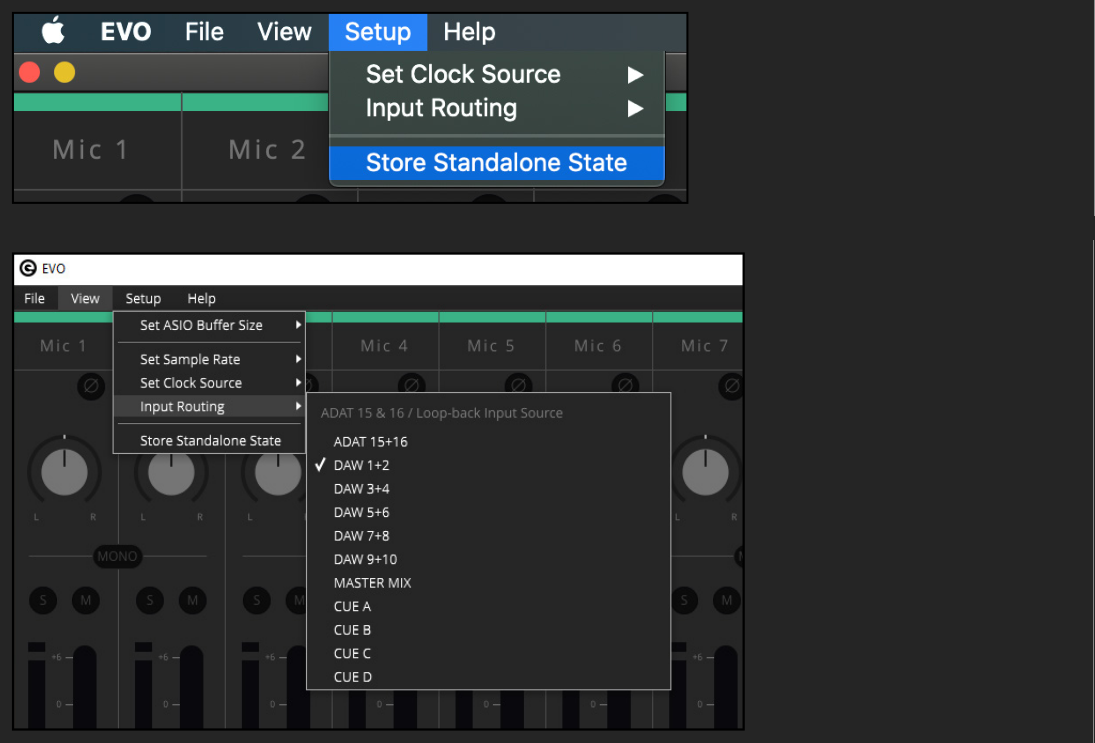
The loopback routing indicator is shown on the source currently feeding the loopback input.
Loopback sources
DAW 1+2
Uses computer audio being sent to EVO 16 outputs 1+2.
DAW 3+4
Uses computer audio being sent to EVO 16 outputs 3+4.
DAW 5+6
Uses computer audio being sent to EVO 16 outputs 5+6.
DAW 7+8
Uses computer audio being sent to EVO 16 outputs 7+8.
DAW 9+10
Uses computer audio being sent to EVO 16 outputs 9+10.
Master Mix
Uses the Main Mix created in the EVO Mixer.
This is useful when the loopback feed needs to combine several sources, such as analogue inputs, digital inputs and computer playback, into one stereo signal.
Cue A-D
Uses the selected Cue Mix created in the EVO Mixer.
A Cue Mix is useful when the recording or stream requires a different balance from the engineer's Main Mix. Build the required balance in Cue A, Cue B, Cue C or Cue D, then select that Cue as the loopback source.
See EVO Mixer and Routing for creating and routing Cue Mixes.
Choose the appropriate source
Use a DAW source when the required audio is already being sent to one specific EVO 16 computer-output pair.
Use Master Mix when the loopback feed should follow the main EVO Mixer balance.
Use a Cue Mix when the loopback feed needs its own independent blend of analogue inputs, digital inputs and computer playback.
Record or stream the loopback signal
After selecting the source, configure the destination application to record EVO 16's loopback input.
- Create or select a stereo input in the recording, streaming or communications software.
- Choose EVO 16 Input 23+24 or the equivalent Loopback stereo input name shown by that application.
- Start playback from the selected loopback source.
- Confirm the input level in the destination application before recording or going live.
For example, in a DAW, create a stereo track and assign Input 23+24 as its input.
Not every application can address EVO 16 input channels 23+24. If the application only exposes a limited set of interface channels, its input-selection capabilities may prevent EVO 16 loopback from being used directly.
Avoid feedback
When creating a loopback mix, avoid routing the destination application's monitored output back into the same loopback source unless that feedback path is intentional.
If feedback occurs, mute software input monitoring or remove the destination application's playback from the selected loopback mix.
Next steps
Continue to Firmware Updates, or return to EVO Mixer and Routing for output routing, Cue Mixes, Talkback and standalone operation.