Motion UI and Hardware Settings
EVO 16's Motion UI uses the front-panel colour display and Control Wheel to show channel status, metering and hardware settings without requiring the EVO software window to be open.
Motion UI
First-time setup
The first time EVO 16 is powered on, Motion UI guides you through setting the hardware LED brightness and choosing an initial assignment for the Function button.
See Getting Started for the first-use procedure. Both settings can be changed later from the Motion UI menu.
Metering
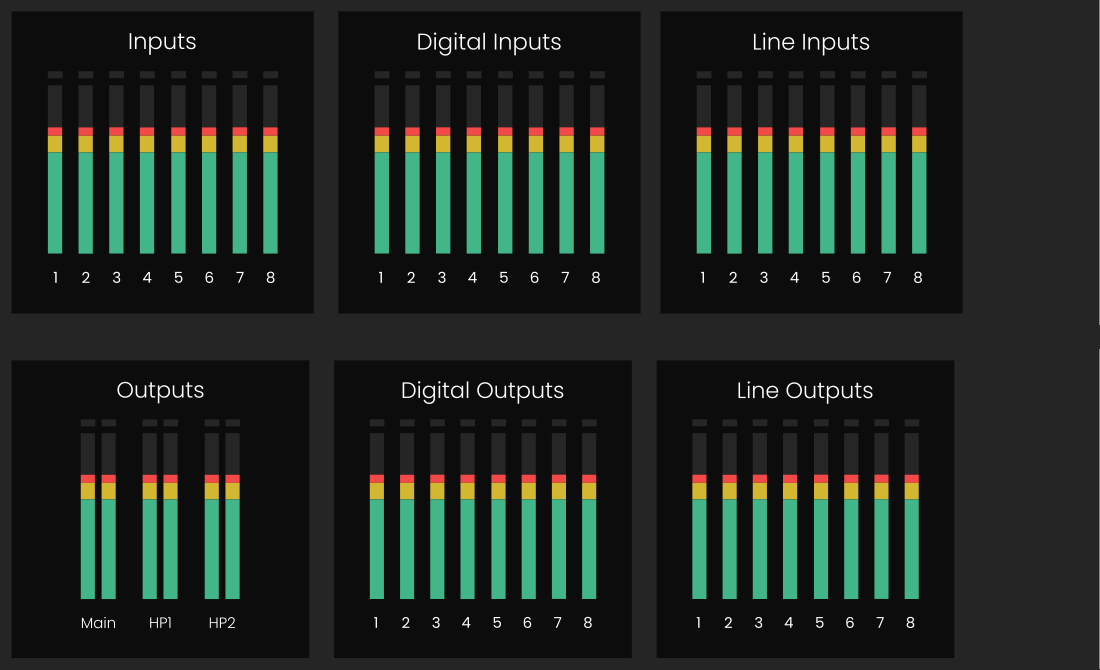
When EVO 16 has not been adjusted for several seconds, the display returns to its metering view.
- The input meters show the eight analogue input levels together. When digital inputs are in use, press the Control Wheel to cycle through the additional input-meter screens.
- The output meters show the main speaker and headphone levels. Press the Control Wheel to cycle through further line-output and digital-output meter screens.
The displayed meter group depends on whether an input or output was selected most recently.
Open the Motion UI menu
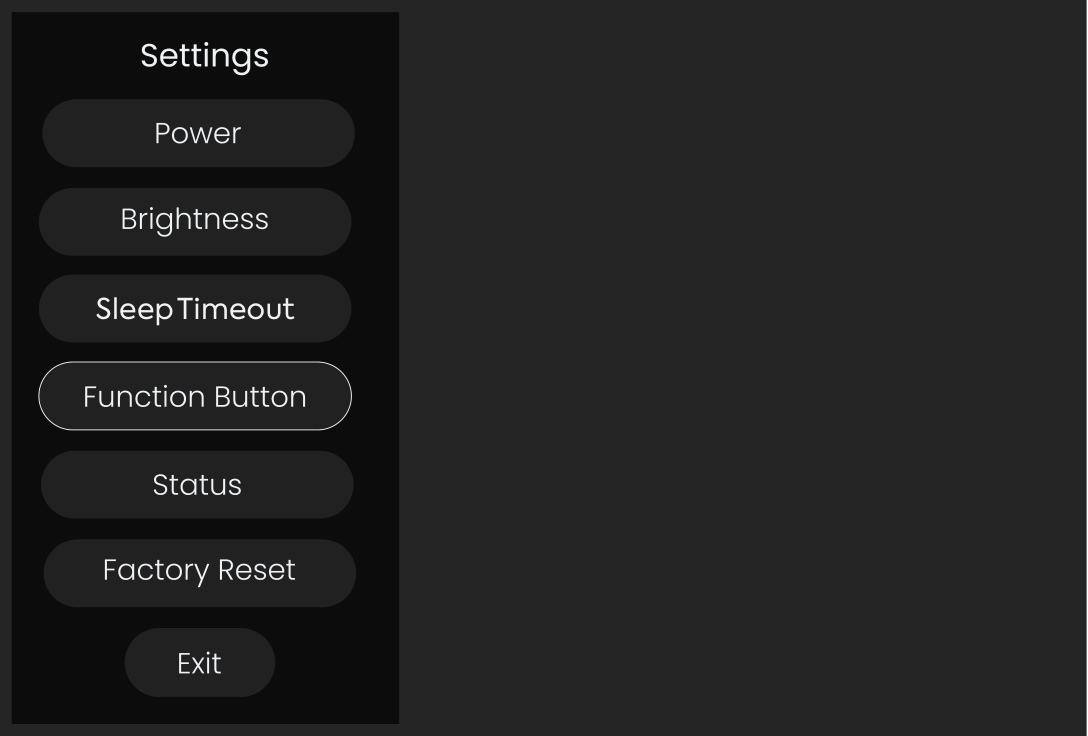
Briefly hold down the Control Wheel to open the hardware settings menu.
The menu provides access to:
- Power
- Function button assignment
- LED brightness
- Sleep Timeout
- Status
- Factory Reset
Power and standby
To place EVO 16 in low-power standby from the menu:
- Select Power with the Control Wheel.
- Press the Control Wheel.
- Confirm Yes.
To turn the unit back on from standby, hold the Control Wheel until the screen illuminates.
You can also open the power-off screen directly by holding the Control Wheel for approximately five seconds.
Assign the Function button
Select Function Button in the Motion UI menu, choose the required monitor function with the Control Wheel and confirm the selection.
The available assignments are:
- Dim
- Alt Speakers
- Talkback
- Mono
See Monitoring and Output Controls for what each function does.
Adjust LED brightness
Select Brightness to change the brightness of EVO 16's hardware LEDs and LED ring. Reduce the setting when a lower light level is preferable in the studio.
Sleep Timeout
EVO 16 can enter sleep mode after a period without audio activity. The available timeout settings in the V2.4 manual are:
- 5 minutes
- 15 minutes
- 30 minutes
- 1 hour
- Off
Select Off to disable the automatic sleep timeout.
Status screen
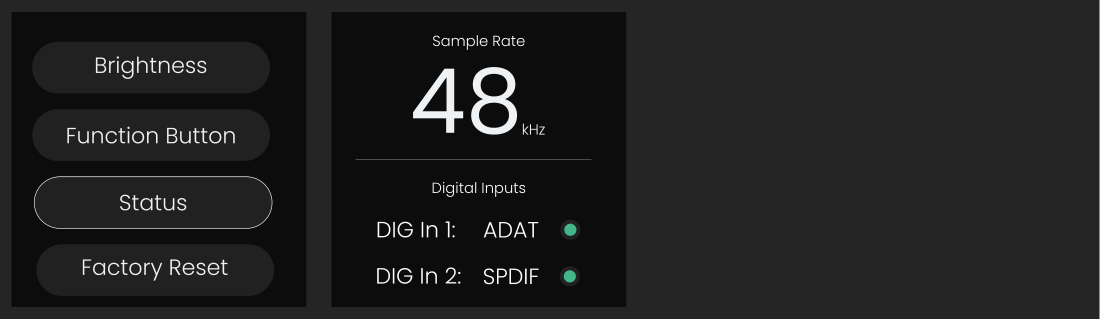
The Status screen displays:
- The current EVO 16 sample rate
- The protocol selected for each digital input
- The detected clock status of the digital inputs
The manual defines the clock-status colours as:
- Green: clocked successfully
- Amber: a signal is present at the wrong sample rate
- Red: no valid signal is detected
The sample-rate and digital clock settings are displayed here for reference. They are configured through the EVO software rather than edited on this Motion UI screen.
Factory Reset
Select Factory Reset and confirm Yes to restore the unit's hardware settings to their factory state.
A factory reset removes the settings currently stored on the unit. Only reset EVO 16 when you intend to discard those saved hardware settings.
Next steps
Continue to Rack Mounting if the interface will be installed in a rack, or Optical Inputs, Outputs and Clocking when configuring digital expansion.