Getting Started
This page covers the essential steps for powering and connecting EVO 16, completing the first-time Motion UI setup, setting input levels and preparing to record.
1. Register EVO 16 and install the EVO software
Register EVO 16 through Audient ARC to access the latest EVO software, drivers and product resources.
- macOS: EVO 16 operates without a separate audio driver. Install the current EVO application for mixer control, routing and firmware updates.
- Windows: Install the current EVO driver and software before using EVO 16 with the computer.
See Software Installation and Registration for the complete procedure.
EVO 16 is not officially supported for use with iOS. Audient recommends using EVO 16 with a supported macOS or Windows computer for full functionality.
2. Connect and power EVO 16
- Turn down the level of any connected speakers or headphones.
- Connect the supplied power cable to EVO 16 and switch the unit on.
- Connect EVO 16 to the computer using a suitable USB data cable.
- Select EVO 16 as the input and output device in the computer's audio settings and in the recording application.
3. Complete the first-time Motion UI setup
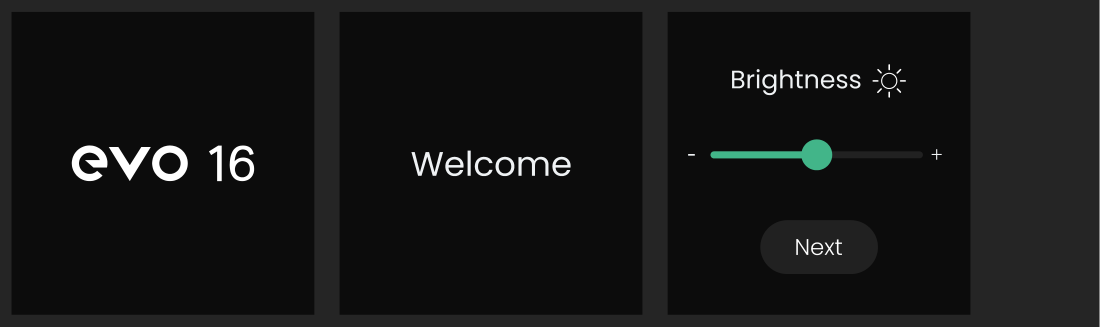
The first time EVO 16 is powered on, the front-panel display guides you through its initial setup.
- Use the Control Wheel to set the hardware LED brightness.
- Press the Control Wheel to confirm the setting and continue.
- Choose the initial assignment for the F button: Dim, Alt Speakers, Talkback or Mono.
- Select Finish to complete the setup.
The Function button assignment can be changed later.
4. Connect speakers or headphones
- Connect the main active speakers or monitor controller to analogue line outputs 1+2.
- Connect headphones to headphone output 1 or 2 as required.
- Press the Speaker button to select the main monitor output, or press headphone button 1 or 2 to select the required headphone output.
- Turn the Control Wheel to set the selected listening level.
5. Connect a microphone, line-level source or instrument
- Connect microphones or balanced line-level sources to the eight analogue combo inputs.
- Inputs 1 and 2 are located on the front panel; the remaining analogue inputs are on the rear panel.
- For a guitar, bass or other high-impedance instrument, connect to input 1 or 2 and enable Instrument mode for that channel.
6. Enable phantom power when required
Some microphones require 48 V phantom power.
- Press the numbered button for the microphone input.
- Press 48V.
- Check the Motion UI to confirm the setting.
Check the microphone manufacturer's instructions before enabling phantom power. Only enable 48 V when the connected microphone requires it.
Instrument mode and phantom power cannot be active at the same time on inputs 1 or 2.
7. Set the input gain with Smartgain
- Press the green Smartgain button.
- Select the required input channels using the numbered input buttons. To select all eight analogue inputs quickly, press and hold Smartgain.
- Press Smartgain again to begin listening.
- Perform the loudest part of the material you intend to record while EVO 16 analyses the selected signals.
- Check the Smartgain status screen when the process finishes.
If a channel fails, check its cable, source level and phantom-power requirement before running Smartgain again for the affected channel.
Setting gain manually
- Press the numbered button for the input.
- Turn the Control Wheel to adjust the input gain.
- Perform at the loudest expected level and use the channel meter on the display to check the recording level.
8. Prepare the recording application
- Select EVO 16 as the application's audio device.
- Create an audio track.
- Select the EVO 16 input connected to the source.
- Arm the track for recording.
- Check the input meter and begin recording.
Next steps
Continue to Hardware and Connections for physical I/O, Input Controls and Smartgain for detailed recording controls, or Monitoring and Output Controls for speaker and headphone operation.