Input Controls and Smartgain
Use the numbered input buttons to select an analogue channel before changing its gain or input functions. EVO 16 can set input gain manually or automatically with multi-channel Smartgain.
Input selection and status
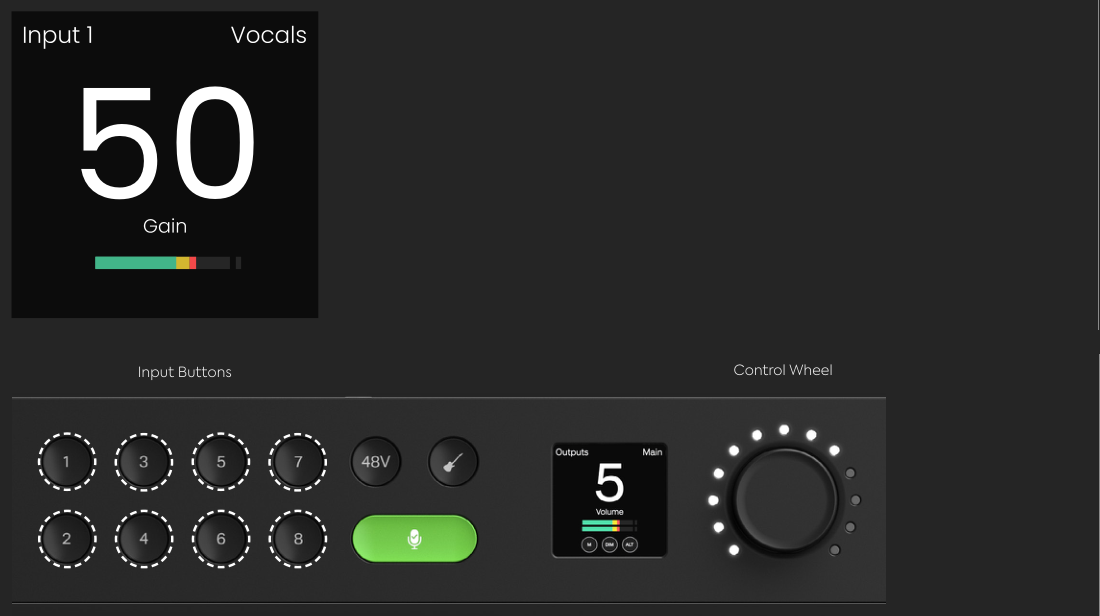

Select an input and set gain manually
- Press the numbered button for the required analogue input.
- Check the Input Status Screen. It shows the input number, assigned channel name, gain setting and channel meter.
- Turn the Control Wheel to adjust the selected input gain.
- Perform at the loudest expected recording level and use the meter to confirm that the input is not overloading.
With an input selected, the front-panel controls can also be used for input mute, phantom power and Instrument mode where available.
Set gain with Smartgain
Smartgain can analyse multiple analogue inputs during the same process and automatically set their gain. EVO 16 can analyse all eight analogue inputs at once.
- Press the green Smartgain button.
- Press the numbered buttons for the channels you want Smartgain to analyse.
- To select all eight analogue channels quickly, press and hold Smartgain.
- Press Smartgain again to start the listening process.
- Perform at the loudest level expected during the recording while EVO 16 analyses the selected inputs.
- Wait for the Smartgain status screen to report the result.
If all selected channels are set successfully, EVO 16 displays the successful Smartgain screen and the inputs are ready to use.
Smartgain status
If Smartgain cannot set one or more selected channels, the status screen identifies the result for each channel:
- Green: Smartgain completed successfully.
- Red: Smartgain failed for that channel.
- Grey: The channel was not selected.
Failed channels are automatically selected when EVO 16 returns to the channel-selection screen. Check the source level, cable and phantom-power requirement before running Smartgain again.
Channels that were already set successfully do not need to be selected again.
Mute an input
Press and hold the required input button until the mute control is shown and the channel button begins flashing.
While the input is muted, the Motion UI replaces the gain value with a mute icon. Press and hold the same input button again to unmute it.
Link inputs as stereo pairs
All eight analogue inputs can be linked in adjacent stereo pairs:
- 1+2
- 3+4
- 5+6
- 7+8
Press the two input buttons for the required pair at the same time to link or unlink them.
When channels are linked:
- Selecting one channel also selects its paired channel.
- The pair uses matched gain control.
- The EVO software mixer displays the two inputs as a stereo channel.
- The Motion UI shows a link indicator for the pair.
Stereo linking is useful for stereo line-level devices or sources recorded using a matched pair of microphones.
Enable phantom power
Some microphones, typically condenser microphones, require 48 V phantom power.
- Select the required microphone input.
- Press 48V.
- Check that the 48V button illuminates red and that the Motion UI confirms the change.
Press 48V again with the channel selected to turn phantom power off.
EVO 16 automatically mutes the input while phantom power is being switched on or off to reduce unwanted noises reaching the speakers or headphones.
Check the microphone manufacturer's instructions before enabling phantom power. Only enable 48 V when the connected microphone requires it.
Use Instrument mode on inputs 1 and 2
Inputs 1 and 2 can be switched to the JFET instrument-input path.
- Connect the instrument to input 1 or 2 with a 1/4-inch TS cable.
- Select that input.
- Press the Instrument button.
- Set the input gain manually with the Control Wheel or include the channel in a Smartgain process.
Press the Instrument button again when you want to return the channel to microphone or line operation.
EVO 16 does not allow Instrument mode and phantom power to be enabled on the same input at the same time. The Motion UI displays a warning if you try to enable both.
Next steps
Continue to Monitoring and Output Controls to set speaker and headphone levels and configure the programmable Function button.