Optical Inputs, Outputs and Clocking
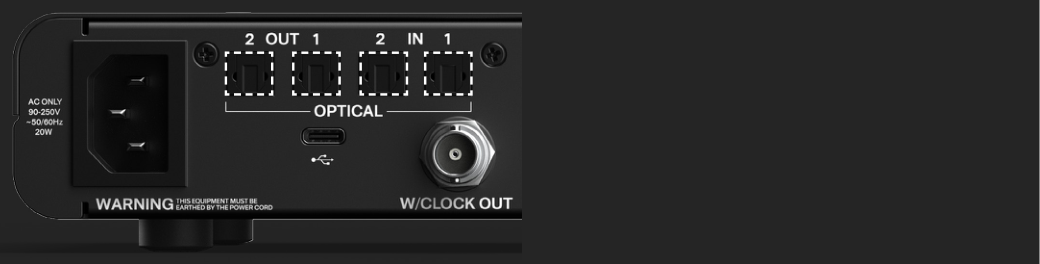
EVO 16 provides two optical inputs, two optical outputs and a BNC word-clock output for integrating digital preamps, converters and other digital equipment.
Digital expansion and clocking
Optical formats and channel counts
Configure the optical input and output formats in the EVO software System Panel. EVO 16 supports both ADAT and optical S/PDIF at sample rates up to 96 kHz.
| Optical format | 44.1 / 48 kHz | 88.2 / 96 kHz |
|---|---|---|
| ADAT | 8 channels per optical port | 4 channels per optical port using SMUX |
| Optical S/PDIF | 2 channels per optical port | 2 channels per optical port |
With both optical ports operating as ADAT, EVO 16 can carry up to 16 digital input channels and 16 digital output channels at 44.1 or 48 kHz. At 88.2 or 96 kHz, ADAT uses SMUX and the total is reduced to 8 digital input channels and 8 digital output channels.
At 88.2 or 96 kHz, use both optical ports when eight ADAT channels are required in one direction. Each TOSLINK connection carries four ADAT channels at these higher sample rates.
Set the optical format
- Connect the external digital equipment using suitable TOSLINK optical cables.
- Open the EVO software.
- Open the System Panel.
- Set the required optical input and output format to ADAT or S/PDIF for the connected equipment.
- Configure the clock source so that only one device in the digital system acts as the master clock.
The digital format selected on EVO 16 must match the format used by the connected device.
Digital clocking
Digital devices in the same system must share a common clock. One device acts as the master clock and the other devices synchronise to it.
Clock can be carried:
- within an ADAT or S/PDIF optical audio connection; or
- separately from EVO 16's BNC word-clock output.
There must only be one master clock in the digital system.
Word-clock output
EVO 16 has a BNC word-clock output. It outputs clock at the sample rate currently used by EVO 16: 44.1, 48, 88.2 or 96 kHz.
The word-clock output remains active whether EVO 16 itself is using its internal clock or is synchronised to an external clock through an optical input.
EVO 16 provides a word-clock output only. It does not have a BNC word-clock input. To slave EVO 16 to another device, clock must be received through one of its optical inputs.
Use EVO 16 as the master clock
Using the audio interface connected to the computer as the master is often the simplest arrangement because sample-rate changes made by the computer can then be distributed to the other digital devices.
To use EVO 16 as the master:
- Set the EVO 16 clock source to Internal in the EVO software System Panel.
- Set the optical format required by the connected digital device.
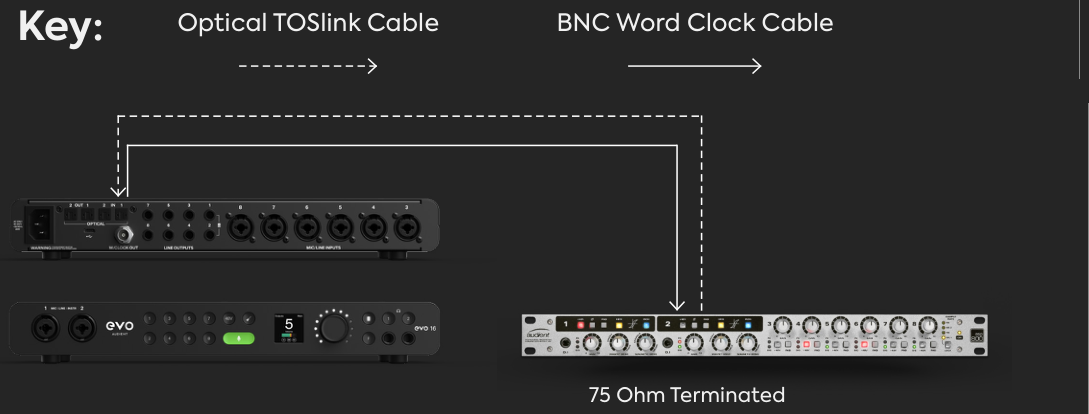
- Clock a single external device from an EVO 16 optical output or from the BNC word-clock output.
- Set the external device to synchronise to the corresponding incoming clock source.
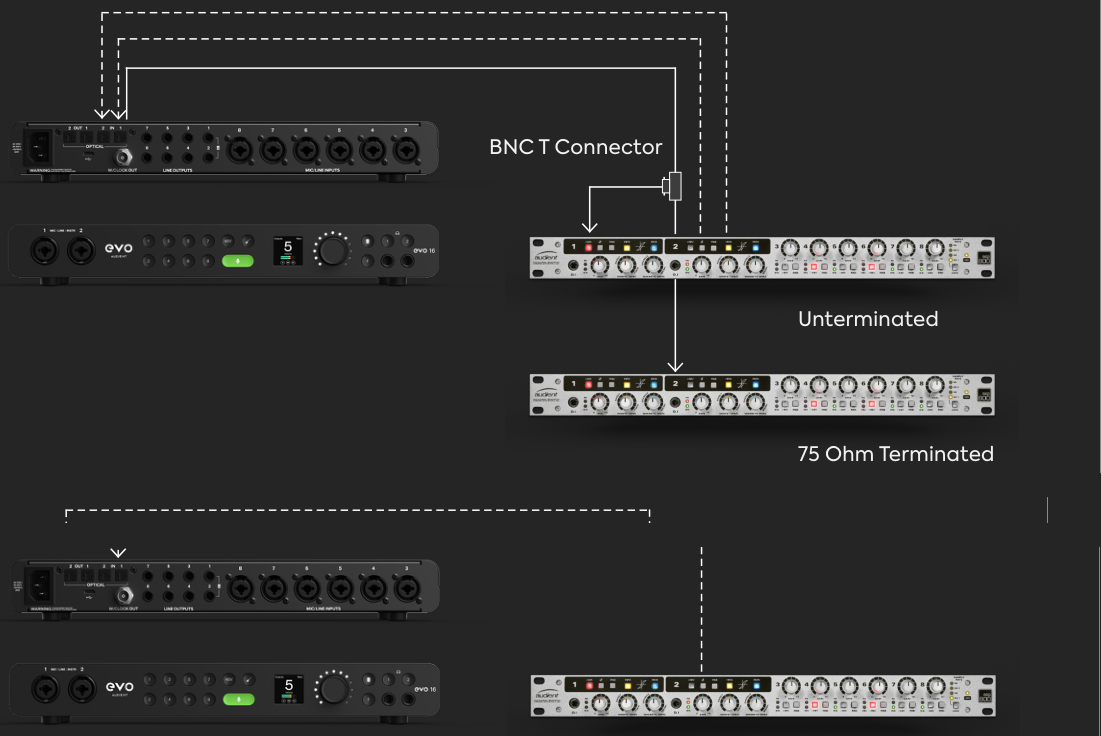
Clock multiple devices from BNC word clock
For multiple devices, the V2.4 manual recommends using the BNC word-clock output and daisy-chaining the clock with appropriate BNC T-connectors.
The final device in the word-clock chain must be terminated at 75 ohms. Intermediate devices in a daisy chain should not terminate the line.
Use EVO 16 as the slave clock
EVO 16 can synchronise to an external master through either optical input.
- Connect the optical output of the master device to an EVO 16 optical input.
- In the EVO software System Panel, set that optical input to the correct ADAT or S/PDIF format.
- Select the corresponding optical input as the EVO 16 clock source.
- Make sure the external device and EVO 16 are operating at the same sample rate.
- Check the EVO 16 clock status before recording.
See Motion UI and Hardware Settings for the front-panel clock-status indicators.
Clock-status indications
EVO 16's Status screen indicates whether the incoming digital clock is valid:
- Green: successfully clocked
- Amber: a signal is detected but the sample rate does not match
- Red: no valid clock signal is detected
If EVO 16 does not lock to an external device, check the optical cable direction, selected optical format, selected clock source and sample rate on both devices.
Routing audio to the optical outputs
Optical format and clocking determine the digital connection; the actual audio sent to the optical outputs is configured separately in the EVO software routing.
For example, EVO 16 analogue inputs can be sent to ADAT outputs using the software mix/routing options. Continue to EVO Mixer and Routing for mixer and output-routing controls.
Next steps
Continue to EVO Mixer and Routing to configure the mixer, output routing, Cue Mixes and Talkback.