EVO Mixer and Routing
The EVO application provides computer-based control of EVO 16's low-latency mixer, output routing, cue mixes, digital settings, talkback and microphone preamps.
After installation, the EVO icon is available from the macOS menu bar or Windows system tray. With EVO 16 connected, use the EVO application to open the mixer.
On current macOS versions, EVO 16's sample rate is changed using Audio MIDI Setup. On Windows, sample-rate and ASIO-buffer controls are available through the EVO application.
EVO Mixer
The EVO Mixer controls what you hear through EVO 16's outputs. Mixer faders change the monitoring mix; they do not change the level of audio already being sent from an input to the DAW.
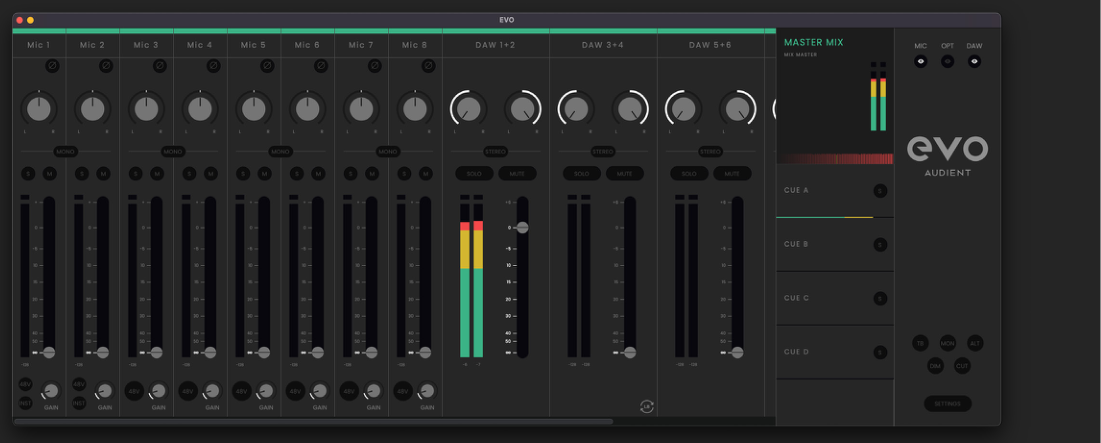
Channel controls
Mixer channels provide the controls applicable to that source:
- Pan - positions the source between the left and right channels of the selected mix.
- Stereo/Mono - links adjacent channels when working with a stereo source.
- Solo (S) - auditions the selected channel while muting other non-soloed mixer channels.
- Mute (M) - removes the channel from the selected monitor mix.
- Meter - shows the signal level and indicates clipping.
- Polarity - inverts signal polarity by 180° where required.
- Fader - sets how much of that source is sent to the selected mix. Up to +6 dB of monitoring gain is available above unity.
Analogue inputs 1–8
The eight analogue input channels allow EVO 16's microphone, line and instrument inputs to be monitored with low latency.
For hardware gain, Smartgain, instrument mode and phantom-power operation, see Input Controls and Smartgain.
Digital inputs
Digital-input channels receive audio from EVO 16's optical inputs. The number of channels available depends on the selected ADAT or S/PDIF format and the current sample rate.
See Optical Inputs, Outputs and Clocking for optical formats, channel counts and clocking.
DAW returns
The DAW-return channels receive playback from the computer. EVO 16 provides multiple DAW return pairs so computer playback can be blended differently into the Main Mix and Cue Mixes or routed to hardware outputs.
Main Mix and Cue Mixes
EVO 16 provides a Main Mix plus Cue A, Cue B, Cue C and Cue D.
Use the Main Mix for the primary monitor balance. Cue Mixes provide up to four independent balances for performers, headphones, additional output feeds or other routing tasks.
When a Cue Mix is selected, its faders and master level can be adjusted independently from the other mixes. Cue Mixes can also be renamed to make larger sessions easier to navigate.
Monitor controls
The mixer provides monitor-control functions including:
- TB - Talkback
- Mono - sums the monitor signal to mono
- ALT - switches the Main Mix to outputs assigned as alternate speakers
- Dim - reduces the monitor level by the configured amount
- Cut - mutes the monitor signal
Monitoring functions can also be assigned to the EVO 16 F button. See Motion UI and Hardware Settings for front-panel assignment.
System Panel
Open the System Panel from the mixer using the Settings control or View > Show System Panel.
The System Panel contains EVO 16's digital configuration, clocking, monitor settings, output routing and talkback settings.
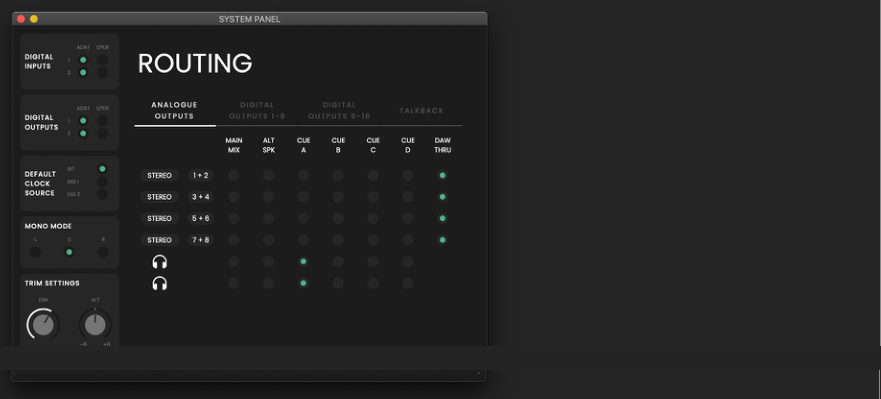
Digital input and output formats
Each optical input and output can be configured for ADAT or optical S/PDIF operation.
The clock source can be set to EVO 16's internal clock or to a valid signal arriving at either optical input. Clock-status indication is also shown when an external source is selected.
See Optical Inputs, Outputs and Clocking before changing optical format or clock source.
Mono, Dim and ALT settings
The System Panel also provides settings for:
- the speaker destination used by Mono mode;
- the amount of level reduction applied by Dim;
- the level trim used for the alternate-speaker path.
Output routing
The routing matrix determines which mix or computer-output path feeds EVO 16's analogue and digital outputs.
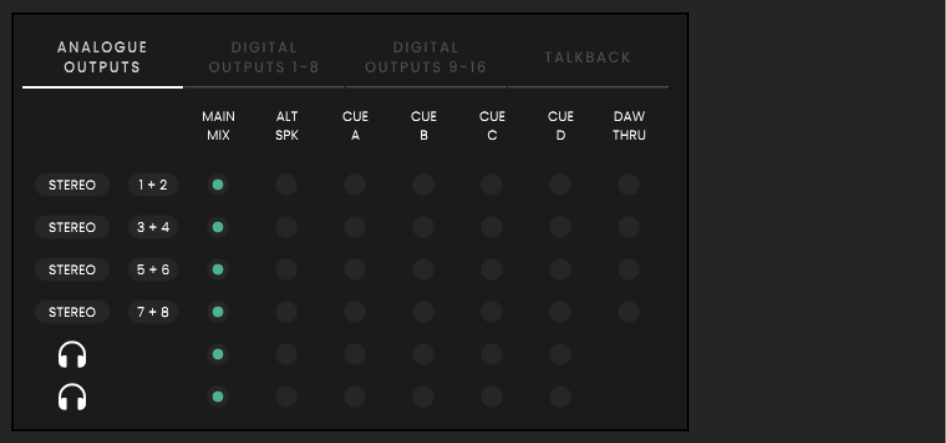
Available routing sources include:
Main Mix
Sends the EVO Mixer's Main Mix to the selected output. This is the normal choice for the primary monitor outputs.
ALT
Sends the Main Mix to the selected output when ALT monitoring is active. Use this to switch the monitoring path to a secondary set of speakers.
Cue A-D
Sends the selected Cue Mix to that output. This is useful for independent performer mixes, headphone feeds and custom analogue or digital output routing.
For example, Headphone 1 can be assigned to Cue A and Headphone 2 to Cue B to provide two independently balanced performer mixes.
DAW THRU
Routes the corresponding computer output directly to the hardware output, bypassing the EVO mixer path.
DAW THRU bypasses EVO 16's mixer and volume control for that output. The signal can therefore be sent at full level. Do not use DAW THRU to feed powered speakers unless another suitable level control is in the signal path.
DAW THRU is not available for the headphone outputs.
Talkback
EVO 16 can use either an input in the EVO system or a separate audio device connected to the computer as the talkback source.
Internal talkback source
An analogue or digital EVO input can be assigned to Talkback. When assigned, that mixer channel becomes the talkback channel.
External talkback source
A separate device available to the computer, such as a USB microphone, can be selected as the talkback source. The external talkback signal appears in the mixer on PC/Mac Output 10.
Talkback is sent to the Cue Mixes, leaving the Main Mix unaffected. Raise the talkback channel in each Cue Mix that should receive it.
Talkback can be switched from the mixer or assigned to the front-panel F button.
Remote microphone preamp controls
EVO 16's analogue preamps can be controlled from the EVO Mixer.
- Open View.
- Select Show Mic Pre Controls.
- Use the gain control on each analogue input to adjust that EVO 16 preamp.
- Use 48V to enable or disable phantom power for that input when required.
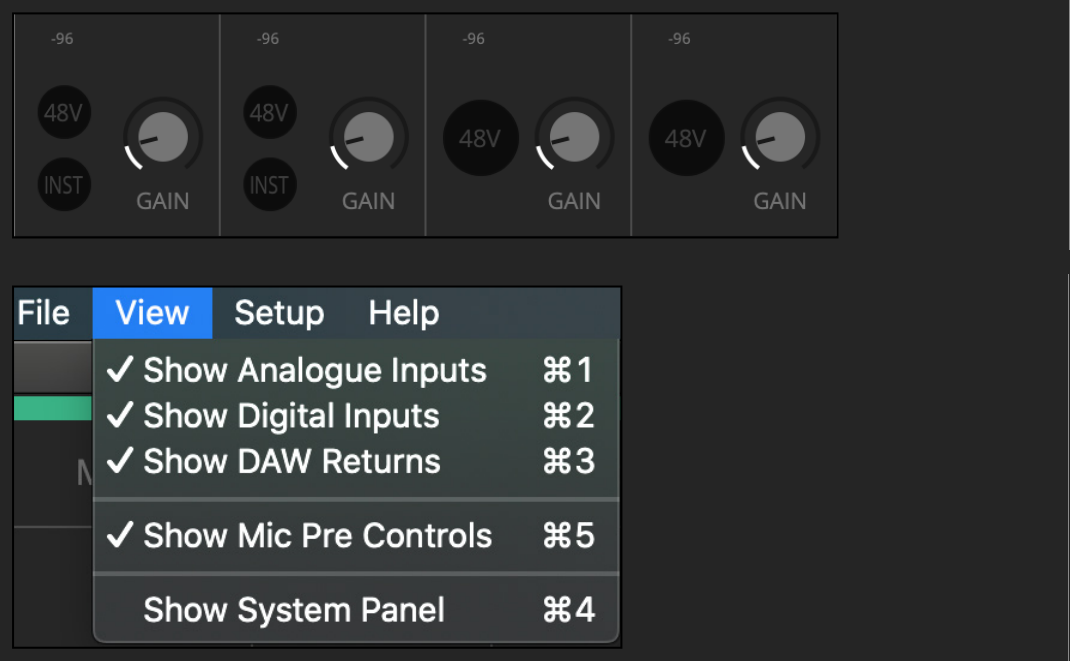
Only enable phantom power when the connected microphone or device requires it.
Save a mixer configuration
EVO 16 mixer settings can be saved for later recall.
- Open File > Save.
- Enter a name for the configuration.
- Save the configuration.
To transfer a setup to another computer, use the EVO application's option to export the mixer setting to a file.
Open a mixer configuration
Saved configurations can be reopened from the File > Open menu.
To load a mixer configuration stored as a file in the current EVO application:
- Open File > Open.
- Select Open Mixer Configuration From File.
- Select the required .XML configuration file.
Store a standalone state
EVO 16 can store its current software configuration for use without a host computer.
- Configure the mixer, digital I/O, output routing and talkback settings as required.
- Open Setup.
- Select Store Standalone State.
The current configuration is saved to EVO 16 and is recalled when the unit powers up without a computer.
When EVO 16 is subsequently connected to a computer, the configuration from the EVO application takes control until the interface is powered off again.
Next steps
Continue to Audio Loopback to route a computer-output pair, Main Mix or Cue Mix into recording or streaming software.