System Panel and Routing
Open the iD Software Mixer System Panel to configure digital I/O, clocking, monitor behaviour, output routing and Talkback.
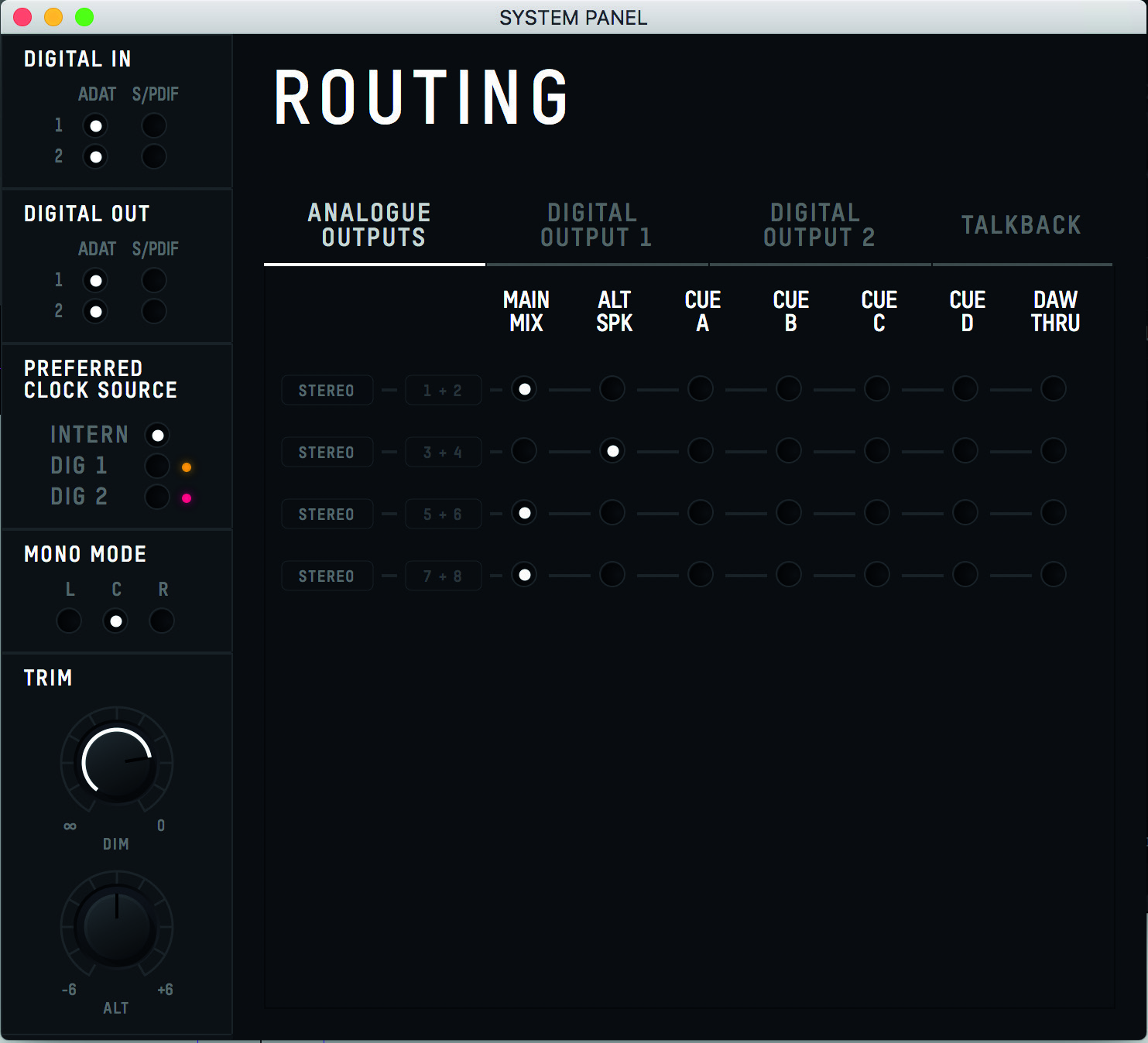
Digital I/O Format
Configure each optical connection to use ADAT or S/PDIF.
Digital format and clock source are separate settings. See Digital I/O and Clocking for channel counts and clocking configurations.
Preferred Clock Source
Select the clock used by iD44 MKII:
- Internal
- Optical Input 1
- Optical Input 2
When an external optical source is selected, its status is shown beside the clock selector:
- Red - no clock detected
- Amber - clock detected at a different sample rate
- Green - valid clock at the correct sample rate
If a valid external clock is not available, iD44 MKII uses its internal clock until the external source becomes valid.
Mono Mode
Mono Mode determines where the summed mono monitor signal is reproduced: left, right or both.
Dim Level
Dim Level sets the amount by which the monitor signal is attenuated when DIM is active.
ALT Speaker Level
Use ALT Speaker Level to compensate for level differences between the Main and alternative monitor systems.
Output routing
The routing matrix is available for:
- Analogue Outputs
- Digital Output 1
- Digital Output 2
The matrix allows each output destination to be fed from the required source.
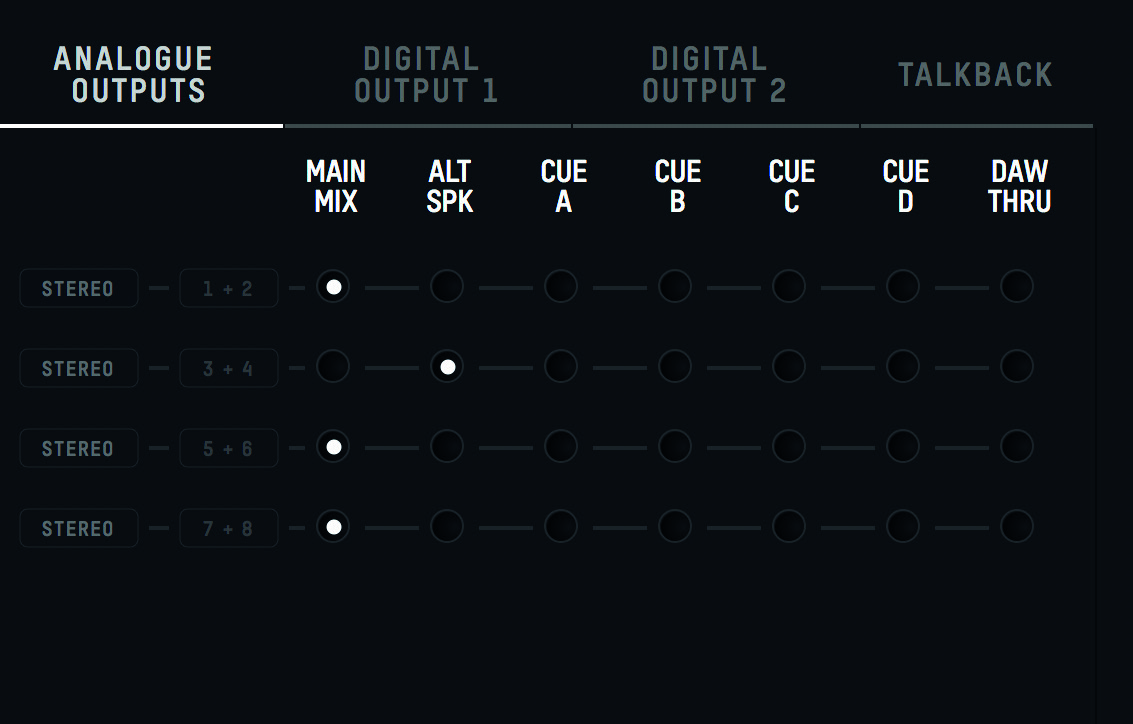
Main Mix
Main Mix routes the iD Software Mixer's Master Mix bus to the selected output.
ALT
ALT routes the Master Mix to the selected alternative-speaker outputs when ALT mode is active.
Cue A-D
Outputs can be assigned to Cue A, Cue B, Cue C or Cue D. Cue mixes use their own Cue Master levels and are not controlled by the main hardware monitor-volume encoder.
DAW THRU
DAW THRU routes computer playback directly to the selected output, bypassing the normal iD Mixer path.
DAW THRU bypasses the normal monitor-volume control for line and digital outputs.
Reduce the DAW output level before assigning a speaker output to DAW THRU, or use an external monitor controller/attenuator. An unattenuated DAW THRU signal can be very loud.
For example, when Digital Output 1 channels 1+2 are assigned to DAW THRU, they are fed from DAW playback outputs 9+10.
Headphones and DAW THRU
Headphone 1 and Headphone 2 can also be assigned through the routing matrix. When a headphone output is assigned to DAW THRU, its dedicated hardware headphone-level control remains active.
Talkback
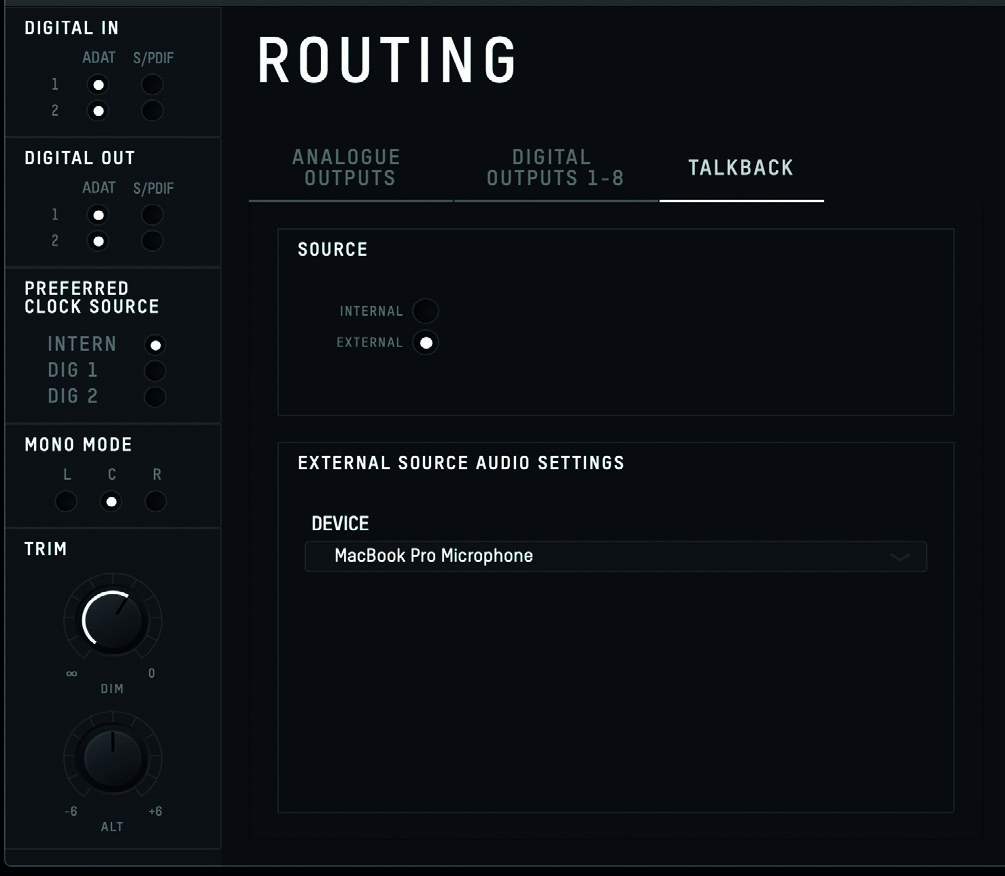
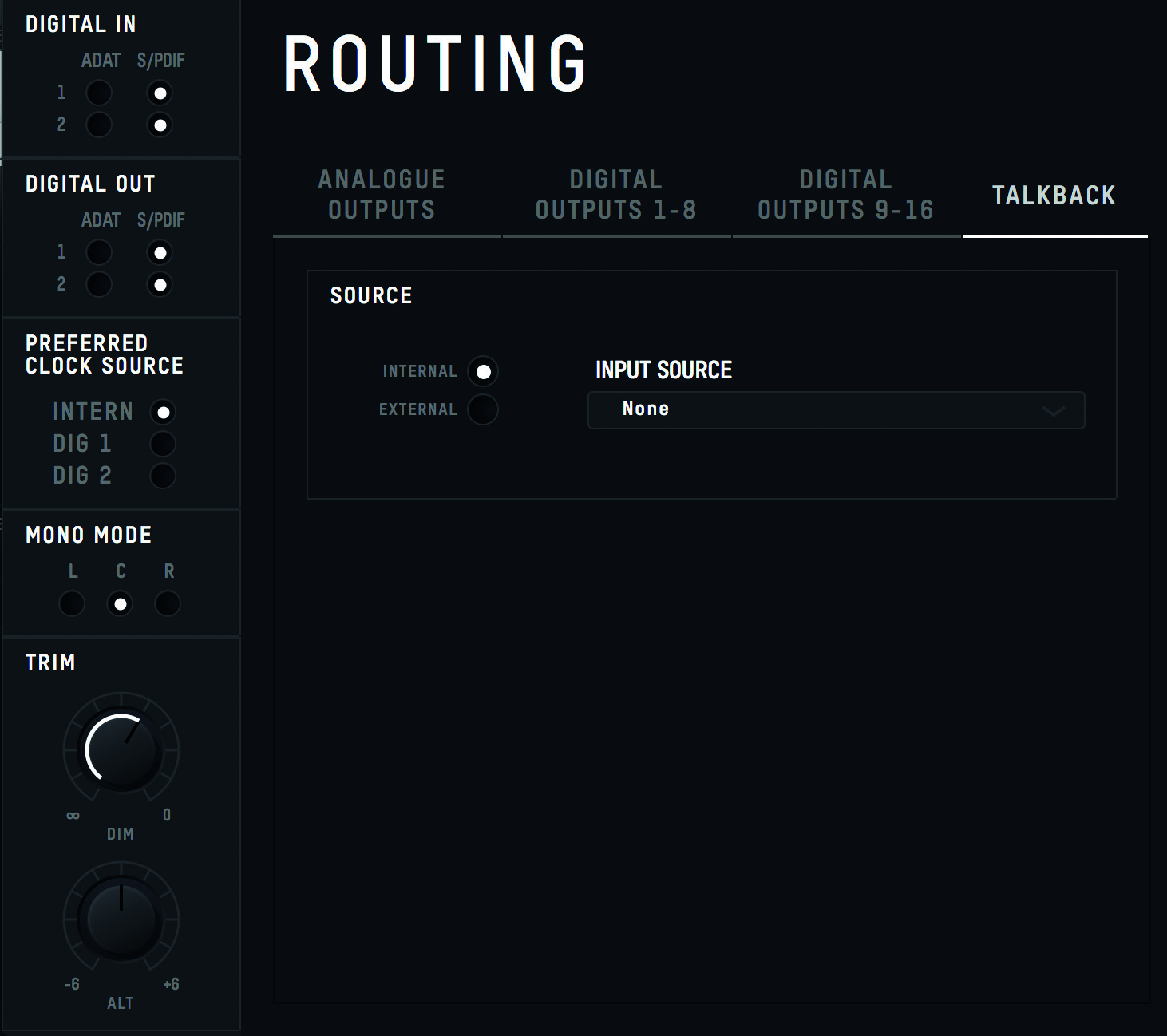
Talkback can use either:
- an available iD44 MKII analogue or digital input;
- an external audio input device connected to the host computer.
Internal input
When an iD44 MKII input is assigned as Talkback, its mixer channel becomes a Talkback channel. Talkback-channel faders appear in the Cue mixes and not in the Main Mix.

External device
Select External Device to use another audio input device connected to the computer, such as a built-in or USB microphone.
Use Talkback Device to choose the required host input device. The external Talkback signal appears in the iD Software Mixer on DAW 10.
Talkback levels
Set the Talkback level independently in the required Cue mixes. Use the dedicated hardware TALKBACK button, the mixer Talkback control or an assigned Function Key to activate Talkback.