INSTALLATION
Installation and Firmware
Before you begin
Check the current iD Range Compatibility guidance for supported operating systems and requirements. iD44 MKII is supported on compatible macOS and Windows systems; it is not supported for iOS or iPadOS operation.
Register iD44 MKII through Audient ARC to access the current iD software, Windows driver and product resources.
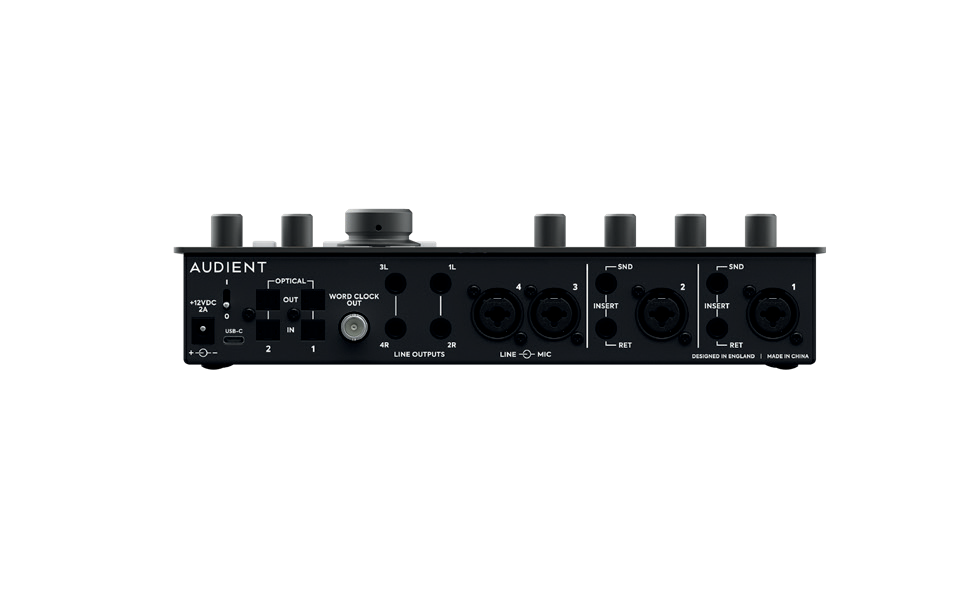
iD44 MKII requires its external 12 V DC power supply and cannot be powered from USB alone. Connect the power supply, then use a suitable USB-C to USB-C or USB-C to USB-A cable to connect the interface to the computer. Switch on iD44 MKII using the rear power switch and confirm that the green USB/status LED illuminates.
macOS installation
Current system requirements
- macOS 10.13.6 High Sierra or later supported release
- Intel Mac or Apple silicon
- 1 GB RAM minimum
Install and connect
- Download the latest iD software through Audient ARC.
- Open the downloaded
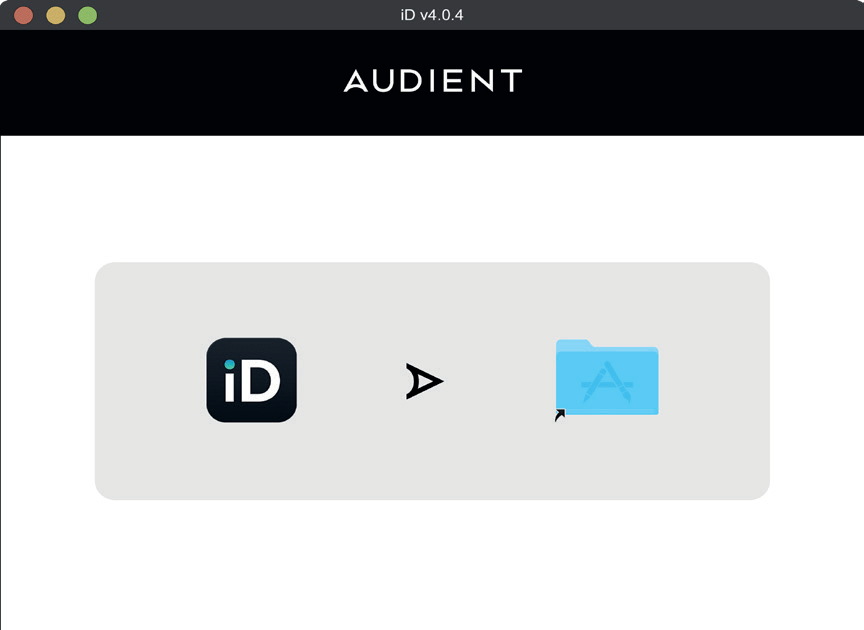
.dmgfile and drag the iD application into the Applications folder. - Connect iD44 to the computer with the supplied USB cable and connect the 12VDC power supply.
- Switch the unit on. The green USB status LED should illuminate when communication is stable.
Check macOS connectivity
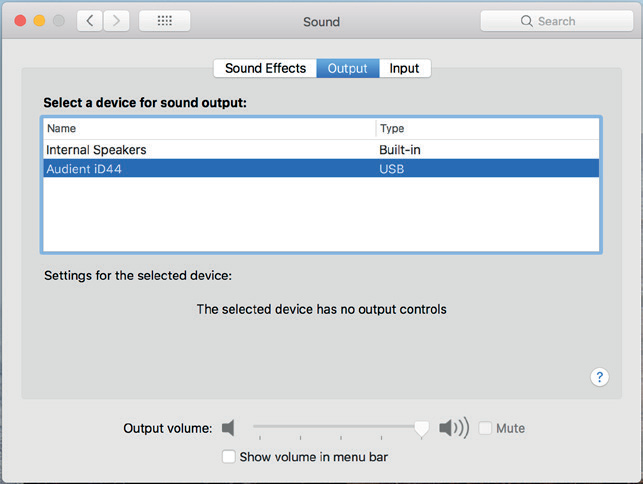
Open System Settings/Preferences > Sound and select iD44 for input and output as required. Disabling operating-system sound effects is recommended.
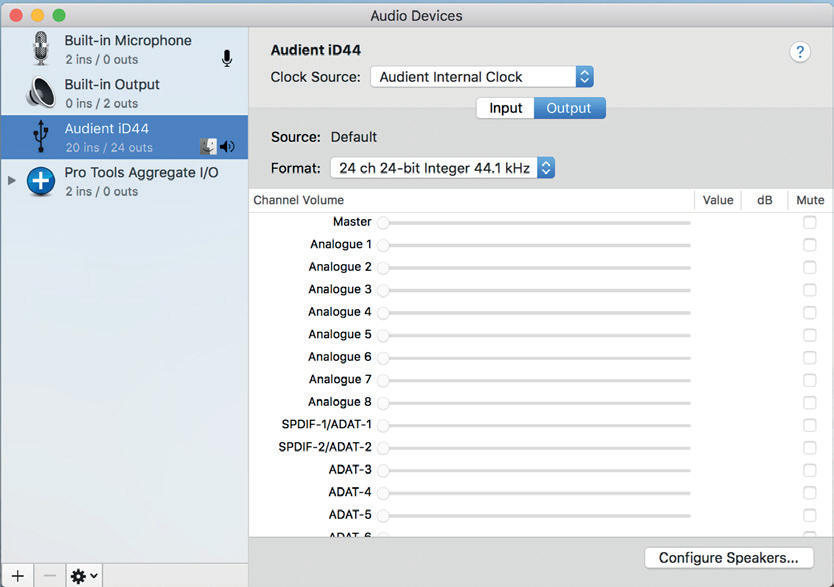
Also open Applications > Utilities > Audio MIDI Setup, then choose Window > Show Audio Devices. iD44 should report 20 inputs and 24 outputs. Clock source selection is handled in the iD application.
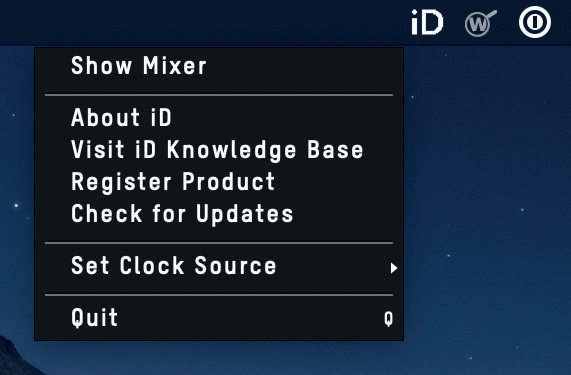
macOS menu-bar icon
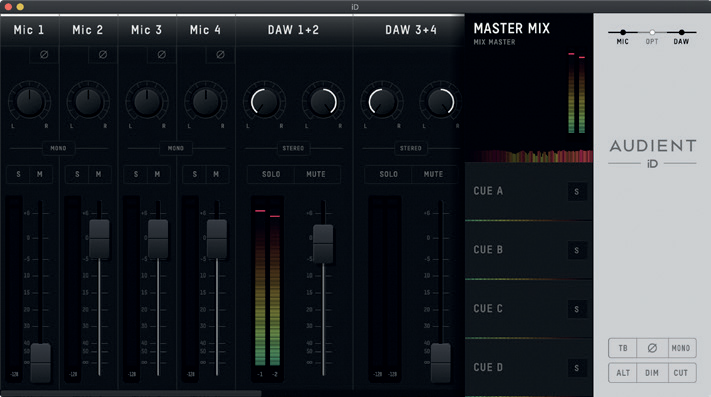
The iD icon gives quick access to Show Mixer, About iD, Visit iD Knowledge Base, Check for Updates, clock-source selection and Quit. Right-click the Dock icon and select Keep in Dock for permanent access.
Windows installation
Current system requirements
- Windows 10 or Windows 11
- Intel Core 2 at 1.6 GHz or AMD equivalent
- 1 GB RAM minimum
Install and connect
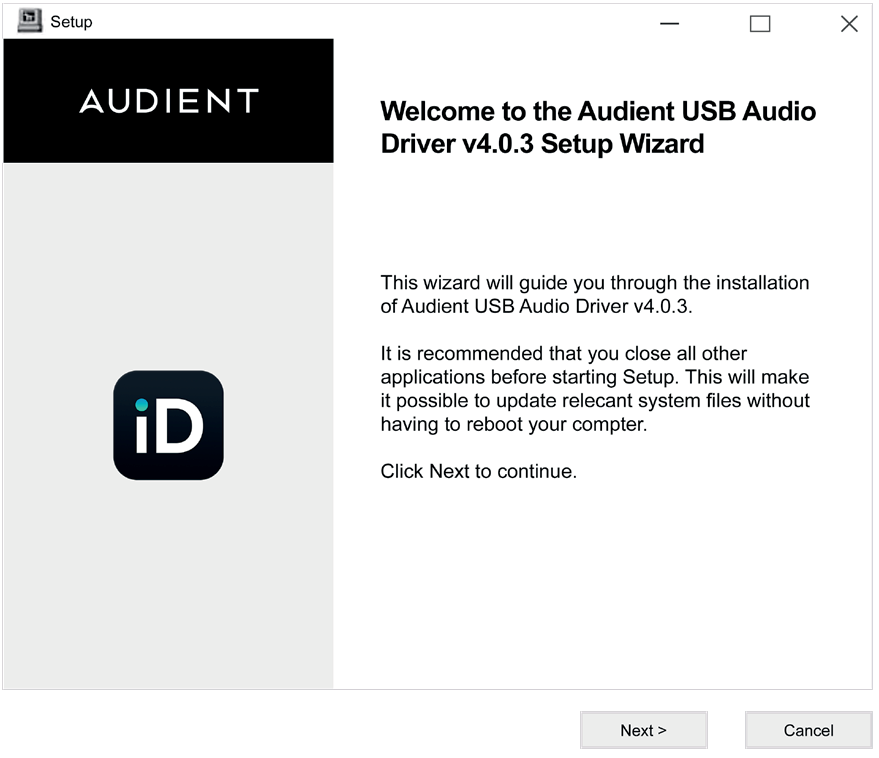
- Download the latest Windows installer through Audient ARC.
- Leave iD44 MKII disconnected from USB while starting the installer.
- Run the installer and follow the on-screen instructions.
- Restart the PC if prompted, then connect iD44 MKII to USB and its power supply.
- Open Control Panel > Hardware and Sound > Sound to confirm iD44 is visible and set it as the default device if required.

The Windows system-tray iD icon opens the mixer and provides sample-rate and ASIO-buffer settings. A buffer of around 256 samples is a useful starting point for mixing. Lower values can reduce tracking latency but increase processing load and may become unstable on demanding sessions.
Launching the iD application
- macOS: Applications > iD
- Windows: Start > All Programs > Audient > iD
On Windows, the application launches when the device is connected.
Firmware update
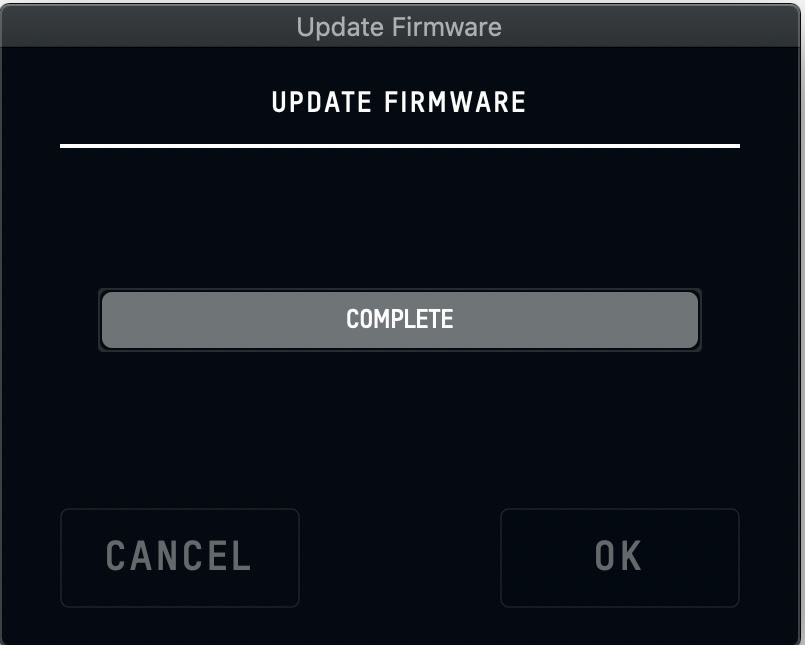
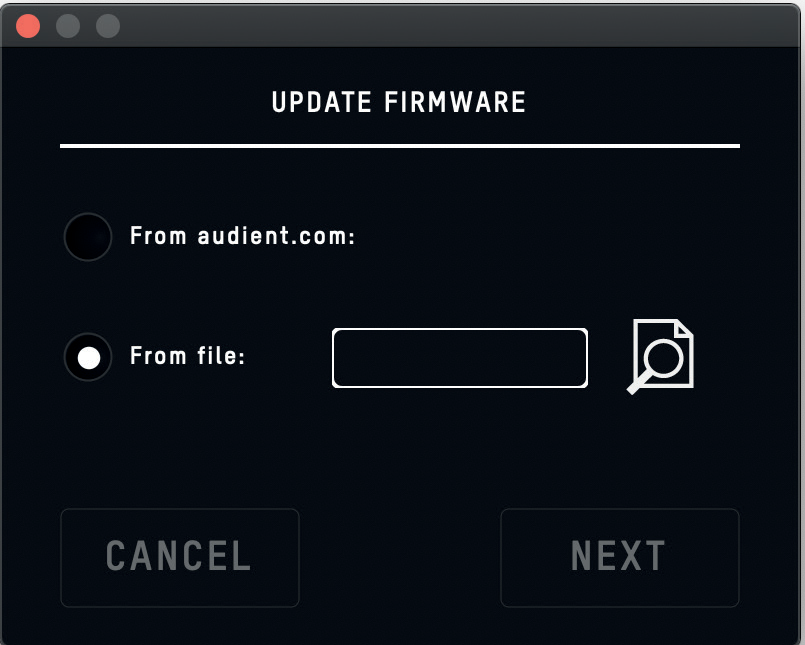
When an update is available, the iD app can download it from Audient or install a local firmware file. Follow the prompts, stop audio playback when requested and select Update. Mute or switch off connected monitor speakers, do not interrupt power or USB while firmware is being written, and power-cycle iD44 with its hardware power switch when complete.