Audio Loopback
Audio Loopback allows audio from applications and the iD Software Mixer to be routed back into recording or streaming software.
Audio Loopback is available on iD44 MKII only. It is not supported by iD44 MKI hardware.
Select the Loopback source
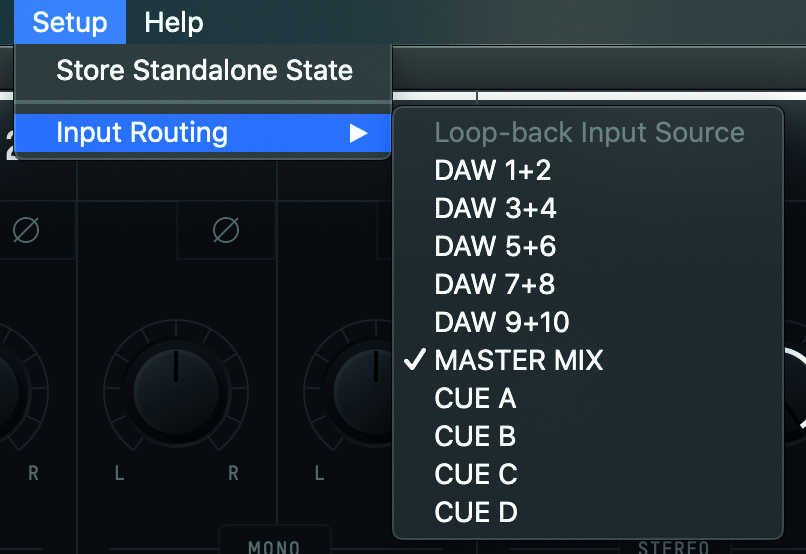
Open Setup > Input Routing and select the source to send to the dedicated Loopback input.
| Source | Signal sent to Loopback |
|---|---|
| DAW 1+2 | Audio sent to DAW outputs 1+2 |
| DAW 3+4 | Audio sent to DAW outputs 3+4 |
| DAW 5+6 | Audio sent to DAW outputs 5+6 |
| DAW 7+8 | Audio sent to DAW outputs 7+8 |
| DAW 9+10 | Audio sent to DAW outputs 9+10 |
| Master Mix | The mix created on the Main/Master Mix panel |
| Cue A | The Cue A mix |
| Cue B | The Cue B mix |
| Cue C | The Cue C mix |
| Cue D | The Cue D mix |
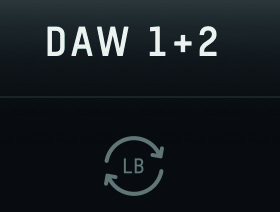
A Loopback icon appears on the currently selected source.
Record or stream the Loopback signal
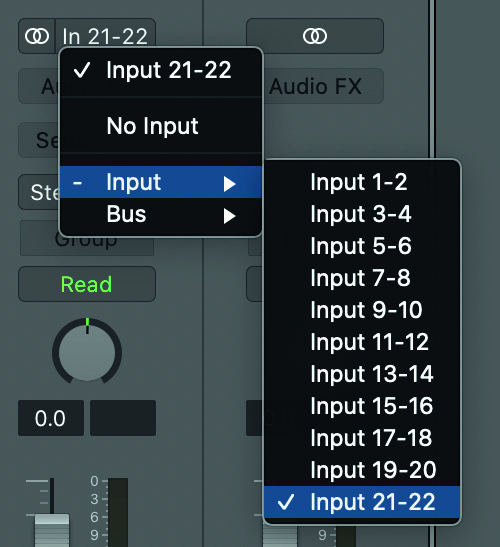
In the recording or streaming application, select Loopback 1+2 or Input 21+22. The name displayed depends on the application.
Some applications only use input channels 1+2 and do not allow another input pair to be selected. These applications cannot access iD44 MKII Loopback on channels 21+22.
Capture computer audio only
For computer playback only, select the DAW pair carrying that audio as the Loopback source.
DAW 1+2 can be used for normal computer playback. To keep Loopback playback separate from the normal Main monitoring path, send the required application to DAW 3+4, 5+6, 7+8 or 9+10 and select the matching DAW pair as the Loopback source.
Capture computer audio with microphones or instruments
To combine several sources:
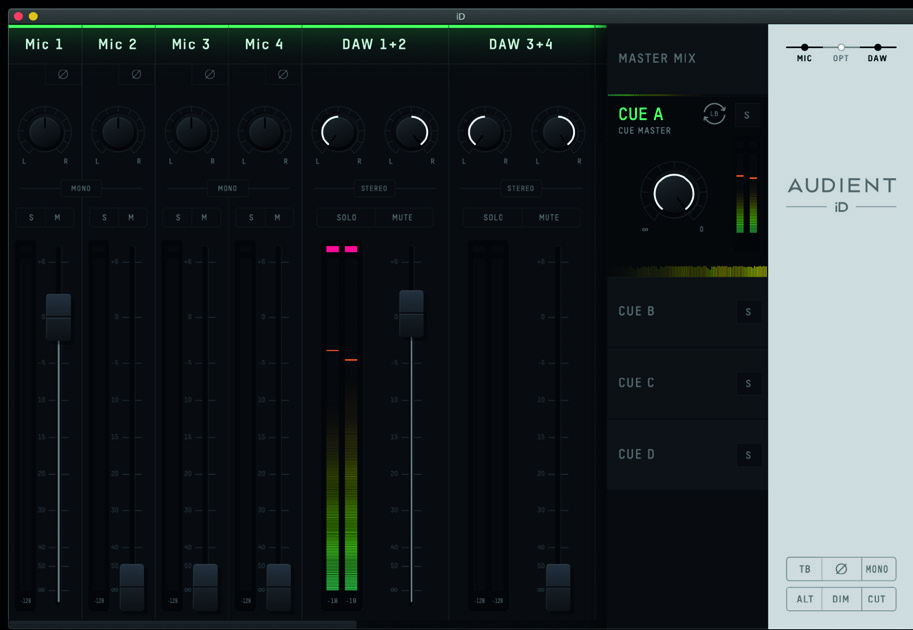
- Build the required mix in the Master Mix or one of Cue A-D.
- Set the required channel levels and pans in that mix.
- Select that Master or Cue mix as the Loopback source.
- Select Loopback 1+2 or Input 21+22 in the recording or streaming application.
Route system audio on macOS
If the source application cannot select its own output, open Audio MIDI Setup, select iD44 MKII and use Output > Configure Speakers to assign the required left and right output channels.
For example:
- channels 3+4 correspond to DAW 3+4;
- channels 5+6 correspond to DAW 5+6.
Select the corresponding DAW pair as the Loopback source.
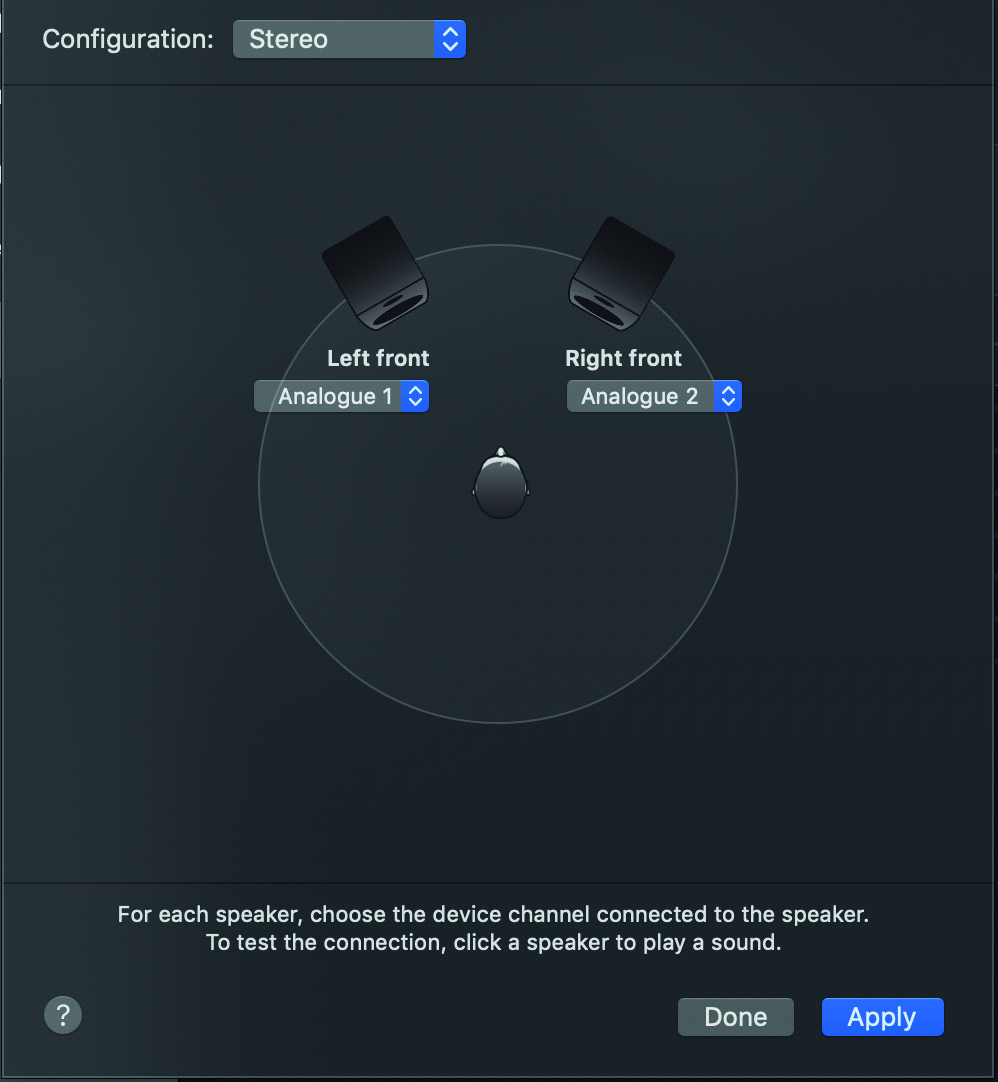
Legacy macOS UI example. Use the equivalent Configure Speakers controls in the current Audio MIDI Setup application.
Route system audio on Windows
If the source application cannot select its own output, open Windows Sound settings and select the required iD44 MKII playback pair.
Where an application uses the Windows default recording input, you may also need to select Loopback 1+2 as the Windows input device.