Troubleshooting
iD44 MKII will not power on
- Check that the supplied 12 V DC power supply is connected securely.
- Check that the regional mains adaptor is fitted correctly.
- Make sure the rear power switch is switched on.
- Check that the mains outlet is working.
Use the supplied iD44 MKII power supply. If the interface still does not power on, contact Audient Support.
Clicks, pops or unstable playback
If no external digital equipment is connected:
- Increase the DAW/ASIO buffer size.
- Check whether the computer is under heavy CPU load.
- Test again.
If ADAT or S/PDIF equipment is connected, also check the digital clock configuration. Clicks and pops can occur when digitally connected devices are not correctly synchronised.
No audio playback
- Check that iD44 MKII is powered on.
- Check the USB connection.
- Confirm that the green USB/status LED is solid.
- Confirm that iD44 MKII is selected as the audio output device in the operating system and DAW.
- Check that the required physical output is correctly assigned in the iD Software Mixer routing matrix.
- If using the Main Mix, confirm that the required DAW Return channels are raised and not muted.
- Check that CUT is not active.
- Check the monitor/output level and the connected speakers or headphones.
See System Panel and Routing for output assignments.
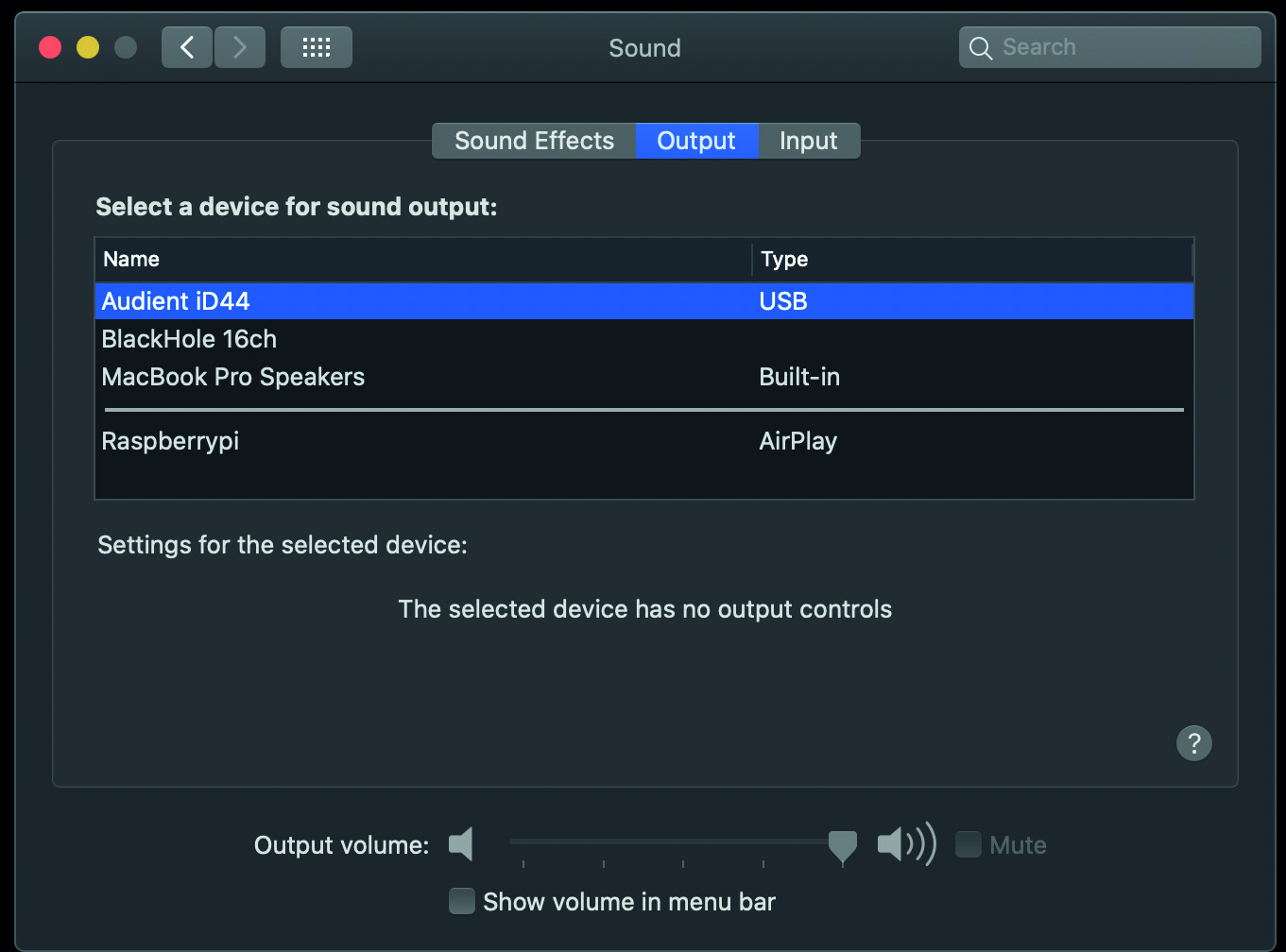
Legacy macOS UI example. Use the current Sound settings on your installed macOS version.
External digital clock will not lock
External clock can be received through Optical Input 1 or Optical Input 2. The BNC Word Clock connector is an output only.
Check the clock source
In the System Panel, set Preferred Clock Source to the optical input receiving the external clock.
Then set the corresponding digital I/O format to ADAT or S/PDIF. Clock source and digital format are separate settings.
Check clock status
- Red - no valid clock signal is detected
- Amber - a clock signal is detected, but the sample rate does not match
- Green - a valid clock is detected at the correct sample rate
If the indicator is red, check the external device is powered on, the optical cable and connections, and that the correct optical input is selected.
If the indicator is amber, make sure the external device, iD44 MKII and DAW use the same sample rate.
If the indicator is green but no digital audio is present, check the digital format and audio routing.
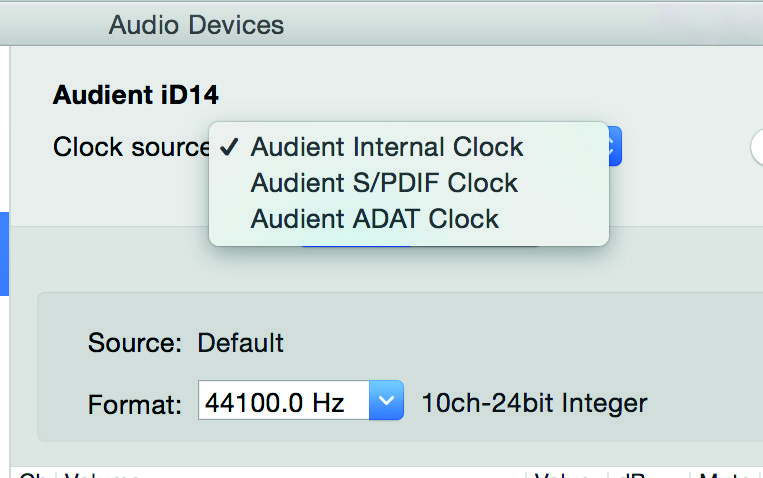
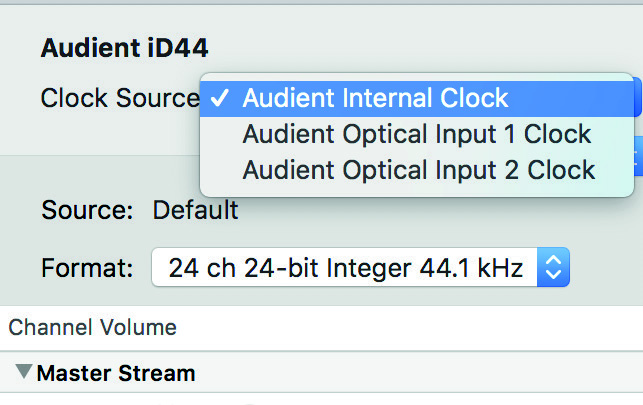
Legacy macOS UI examples. The clocking principles above remain the authoritative instructions.
Reset the iD Software Mixer
If the mixer configuration becomes corrupted or behaves unexpectedly, reset its saved state.
Quit the iD application completely before deleting the file.
macOS
In Finder:
- Open the Go menu.
- Hold Option and select Library.
- Open
Application Support > Audient > iD. - Delete
state.xml.
Windows
Delete:
C:\Users\<username>\AppData\Roaming\Audient\iD\state.xml
Delete only state.xml.
Do not delete the parent iD folder because it also contains saved mixer presets.
Reopen the iD application. A new default state.xml file will be created.
Software and firmware updates
Use Audient ARC to access the current iD software and Windows driver. Use Check for Updates in the iD application for firmware updates.
See Installation and Firmware for the firmware-update procedure.