DAW Setup
iD44 MKII can be used with compatible DAWs that support the required Core Audio or ASIO audio device.
Monitoring and buffer size
Lower DAW buffer sizes reduce software-monitoring latency but increase CPU load. Higher buffer sizes can improve playback stability in larger sessions.
If you monitor recording inputs through the iD Software Mixer, disable monitoring of the same live signal in the DAW to avoid hearing both the low-latency iD Mixer signal and a delayed DAW monitoring path.
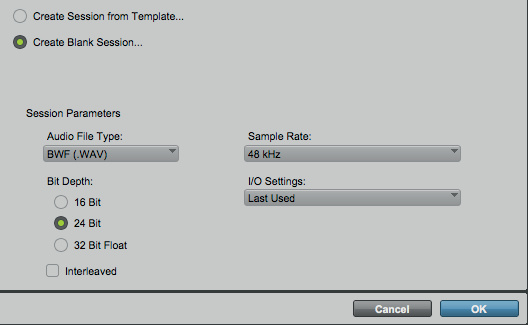
Pro Tools
- Open Setup > Playback Engine.
- Select iD44 MKII as the Playback Engine.
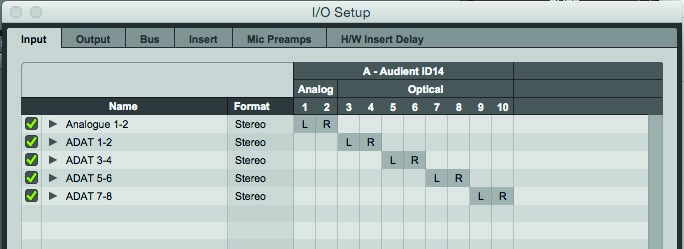
- Open Setup > I/O.
- Confirm that the required iD44 MKII inputs and outputs are available.
If the I/O configuration does not match the connected interface, use the Pro Tools I/O Setup controls to restore or create the required paths.
On Windows, configure the Audient ASIO buffer through the current iD application/driver controls where required.
Logic Pro
Select iD44 MKII
- Open Logic Pro > Settings > Audio.
- Select Devices.
- Select iD44 MKII as the required Input Device and Output Device.
- Set the required I/O buffer size.
Direct monitoring
If you are monitoring inputs through the iD Software Mixer, disable Software Monitoring in Logic Pro > Settings > Audio > General.
I/O labels
Open Mix > I/O Labels to rename iD44 MKII input and output channels.
Sample rate
Set the project sample rate in File > Project Settings > Audio.
If iD44 MKII is using its internal clock, Logic Pro can set the interface sample rate from the project. If iD44 MKII is synchronised to an external ADAT or S/PDIF source, make sure the Logic project uses the same sample rate as the external clock source.
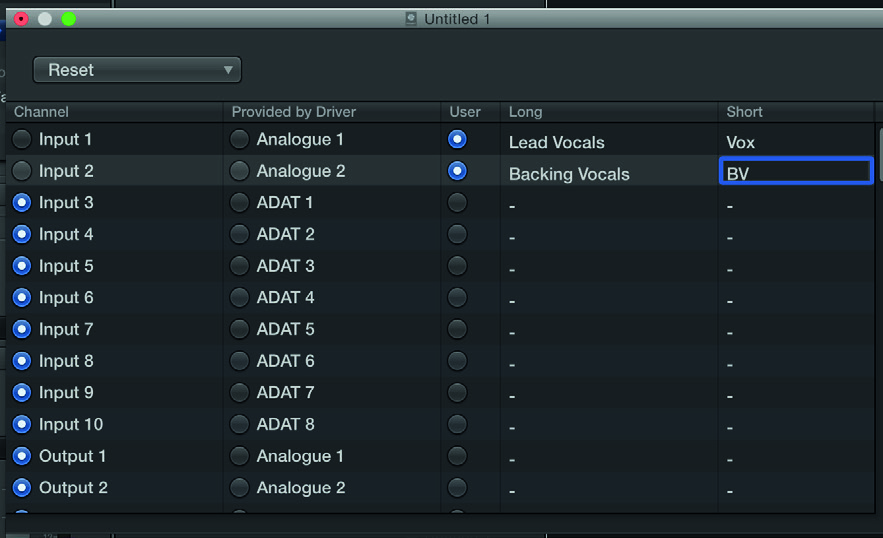
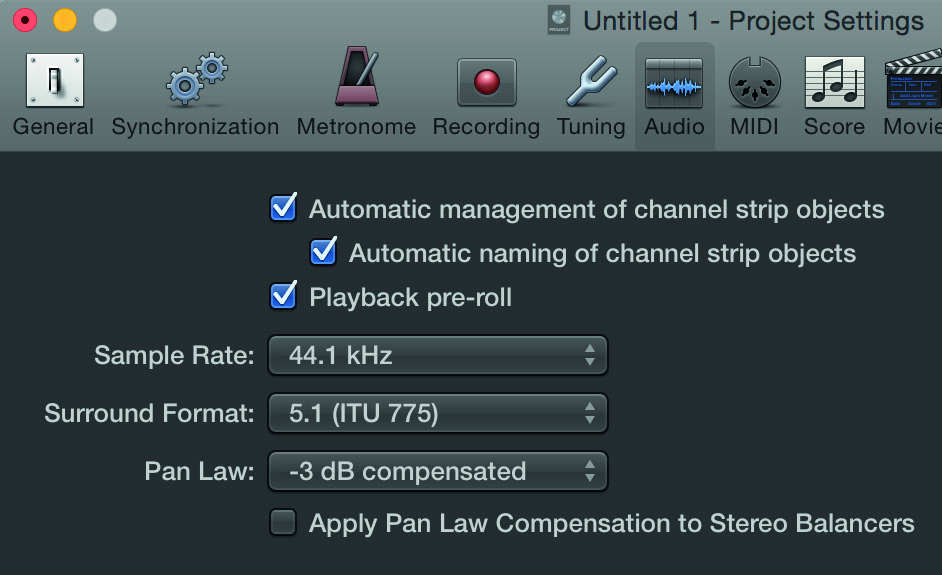
Legacy Logic Pro UI examples. Follow the current menu paths above.
Cubase / Nuendo
Select the audio driver
- Open Studio > Studio Setup.
- Select Audio System.
- Select the Audient/iD44 audio driver from the ASIO Driver menu.
- Confirm the change if prompted.
Configure I/O
Open Studio > Audio Connections, or press F4, and create or assign the required input and output buses.
If monitoring an input through the iD Software Mixer, do not simultaneously monitor the same input through the Cubase/Nuendo track.
External clock
If iD44 MKII is synchronised to another digital device through ADAT or S/PDIF:
- Open Studio > Studio Setup.
- Select the iD44 MKII audio driver.
- Enable Externally Clocked.
- Make sure the project sample rate matches the incoming digital clock.
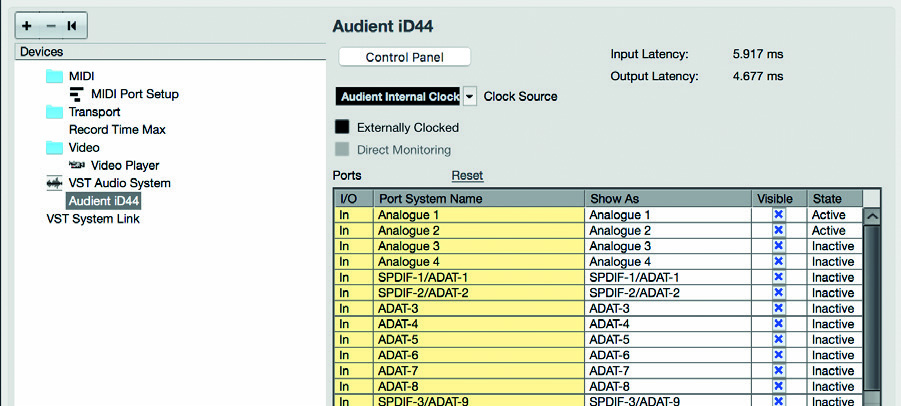
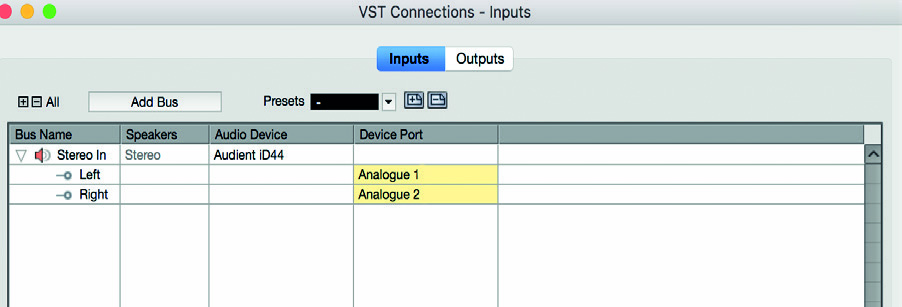
Legacy Cubase/Nuendo UI examples. Current versions use Studio > Studio Setup and Studio > Audio Connections.
Ableton Live
Select iD44 MKII
Open Live Settings and select Audio.
On macOS, use Core Audio and select iD44 MKII. On Windows, use the Audient ASIO driver.
Configure channels
Use the Input and Output Channel Configuration controls to enable the iD44 MKII channels required by the Live Set.
Direct monitoring
If monitoring through the iD Software Mixer, set the relevant audio track to Monitor: Off so the live input is not also monitored through Live.
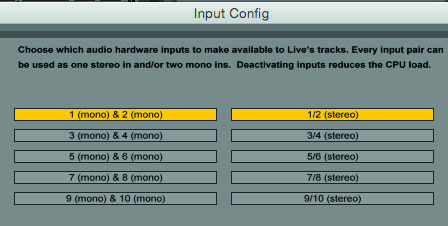
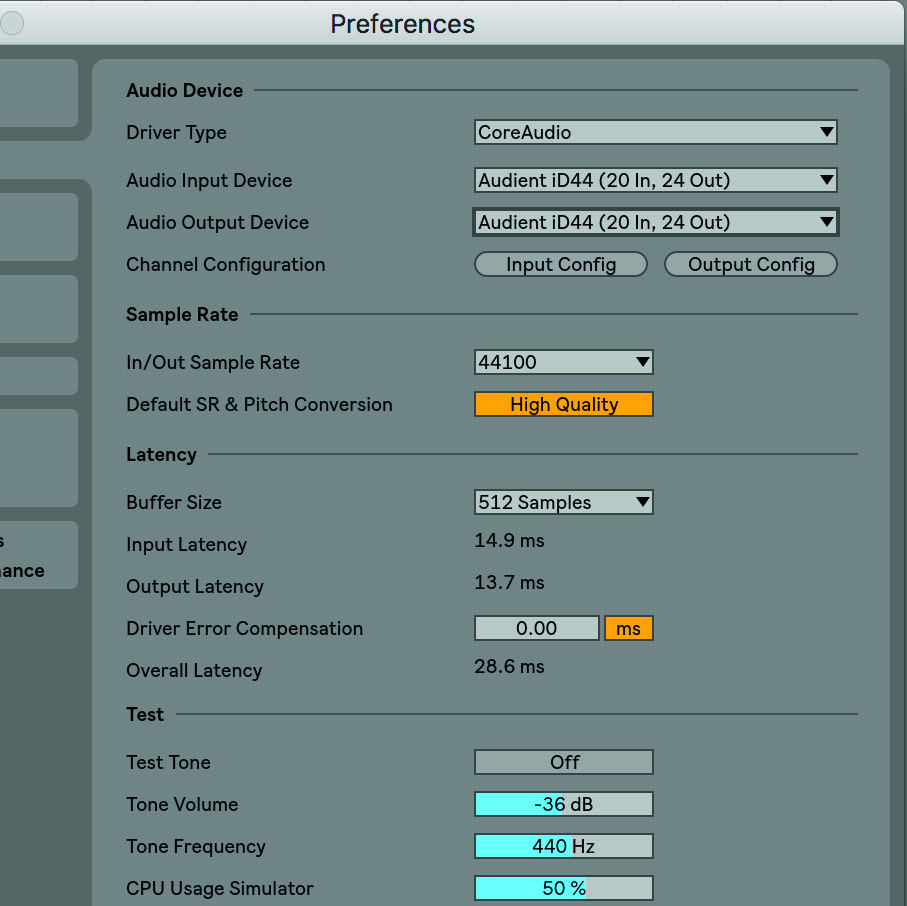
Legacy Ableton Live UI examples. Current versions use Live Settings > Audio.