DLC Windows Setup
Physical connection
Connect a standard CAT5 Ethernet cable from the DLC Network port on the rear of the console to the Windows PC or the same router/network switch as the PC.
Connection software
Install the current ASP8024-HE DLC connection software through the ASP8024-HE Downloads page / ARC before configuring the network.
Choose DHCP or manual addressing
For an established network using DHCP, set the PC Ethernet interface and DLC to obtain addresses automatically.
For the direct manual setup described by the source:
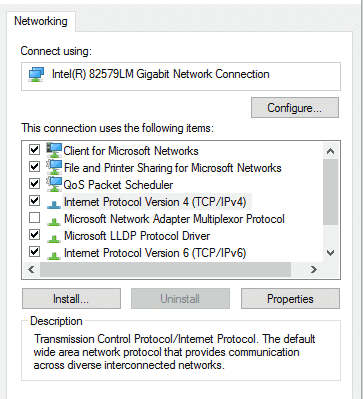
Manual PC address
Configure the Ethernet adapter with a unique address in the range:
192.168.100.X
where X is 1–254 and differs from the DLC address.
Set:
- Subnet mask: 255.255.255.0
- Default gateway: leave blank for the direct setup in the manual
Manual DLC address
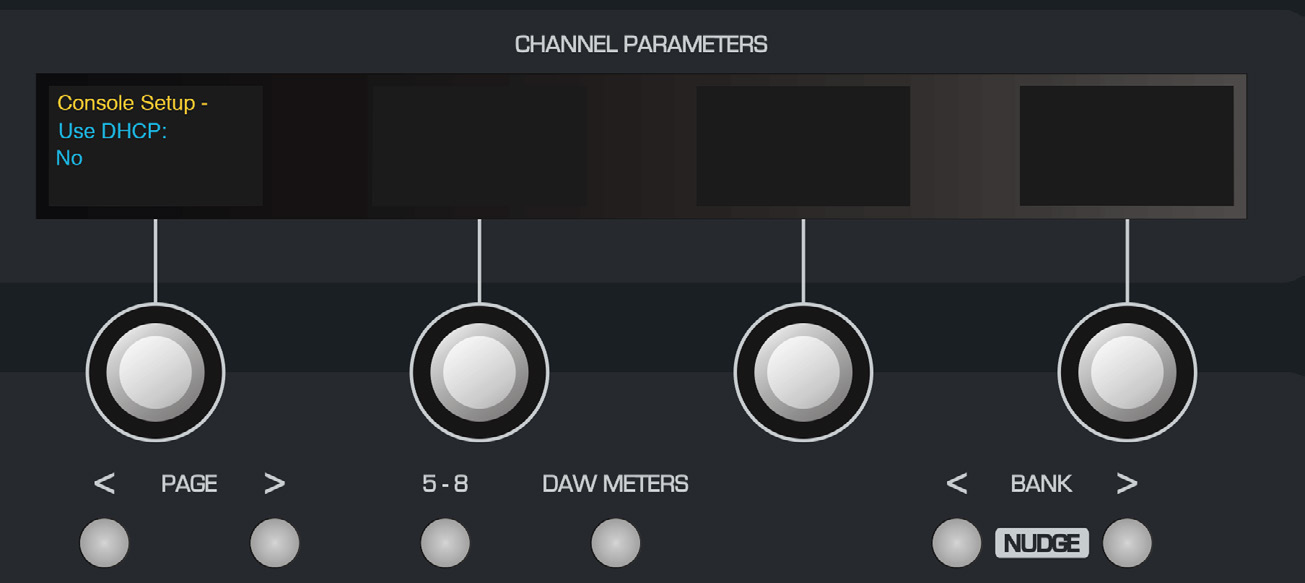
- Press SETUP on DLC.
- Set Use DHCP = NO.
- Set a different 192.168.100.X address.
- Set subnet mask to 255.255.255.0.
- Set port to 1212.
- Press SETUP again to save and exit.
After changing network settings, reboot the console and PC, open the current DLC connection application, select the console and connect.
DHCP
Set Use DHCP = YES on DLC and configure the PC network adapter for DHCP. Both devices must be connected to the same network.
Continue to DLC Control Surface and Audio Routing.