Faderlink, Analogue Automation and DLC Support
Faderlink Installation
Faderlink allows DLC analogue VCA level and Cut movements to be written as DAW plug-in automation without a separate automation computer.
Install the plug-in
- Download the current Faderlink installer through the ASP8024-HE Downloads page / ARC.
- Close the DAW before installation.
- Run the installer and complete the installation steps.
- Reopen the DAW and confirm Faderlink appears in the plug-in list.
The DLC section of Manual v1.1 describes Faderlink as a 64-bit AAX, VST and Audio Unit plug-in. Use the current download package for present format/OS compatibility.
Set DLC to Faderlink mode
- Press SETUP on DLC.
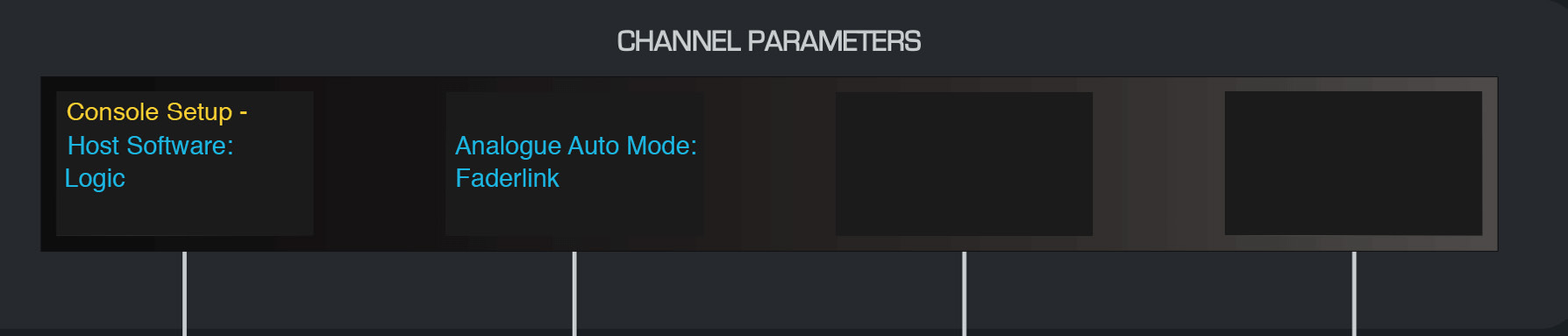
- Set Analogue Automation Mode to Faderlink.
- Press SETUP again to save the setting.
Faderlink and Analogue Automation
Faderlink interface
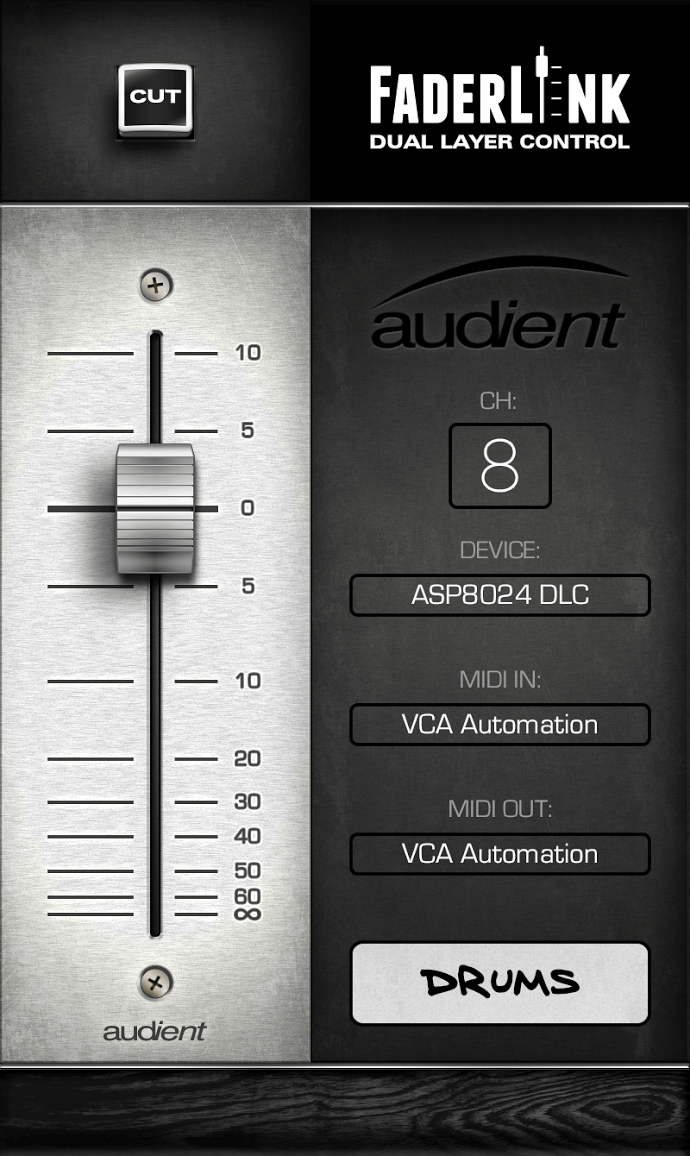
Each Faderlink instance provides:
- CHANNEL CUT - mirrors the Cut state of the selected DLC VCA channel.
- CHANNEL FADER - controls that VCA from off to approximately +10 dB.
- CHANNEL SELECTION - selects DLC channel 1–8.
- DEVICE - selects the ASP8024-DLC device.
- MIDI IN - automation MIDI input.
- MIDI OUT - automation MIDI output.
- SCRIBBLE STRIP - names the channel and sends that label to the corresponding DLC OLED display.
Set the MIDI ports to ASP8024-DLC Automation.
Write analogue automation
Before starting, set DLC Analogue Automation Mode = Faderlink.
For each automated DLC channel:
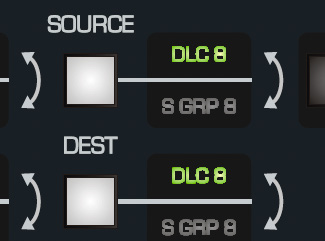
- Set the required analogue SOURCE and DEST routing on DLC.
- Insert a Faderlink plug-in on a suitable DAW track. It can be on the corresponding audio track or on a dedicated automation track.
- Set Device = ASP8024-DLC and confirm the automation MIDI input/output ports.
- Select the required DLC channel number in the plug-in and enter a useful channel name.
- Confirm AUTO SAFE and UNITY are disengaged on that DLC channel.
- Put the DAW track containing Faderlink into an automation write mode such as Touch, Latch or Write.
- Start playback and move the DLC VCA fader and/or Cut control to write automation.
Automation can then be edited using the DAW's normal automation tools and recalled with the session.
DLC Firmware and Support
Audient may release DLC firmware to improve control-surface workflow, correct bugs or add features. Firmware is supplied as part of the current DLC software package.
Update resources
- Register the console through Audient ARC.
- Use the ASP8024-HE Downloads page to reach current DLC/Faderlink resources.
- Follow the instructions supplied with the current DLC Connect/software package when a firmware update is required.
Support
If DLC is not connecting or operating as expected, first confirm:
- Ethernet connection and network status.
- Computer and DLC are on the same subnet.
- Manual IP addresses are unique if DHCP is disabled.
- DLC port is set to 1212 where required by the source workflow.
- The current connection application is running.
- The correct HUI/DAW control-surface configuration is selected.
- Faderlink Analogue Automation Mode is enabled when using Faderlink.
If the issue continues, contact Audient Support or email support@audient.com.
For console registration and service information, see Warranty, Registration and Support.