DLC Overview and Mac Setup
DLC Overview
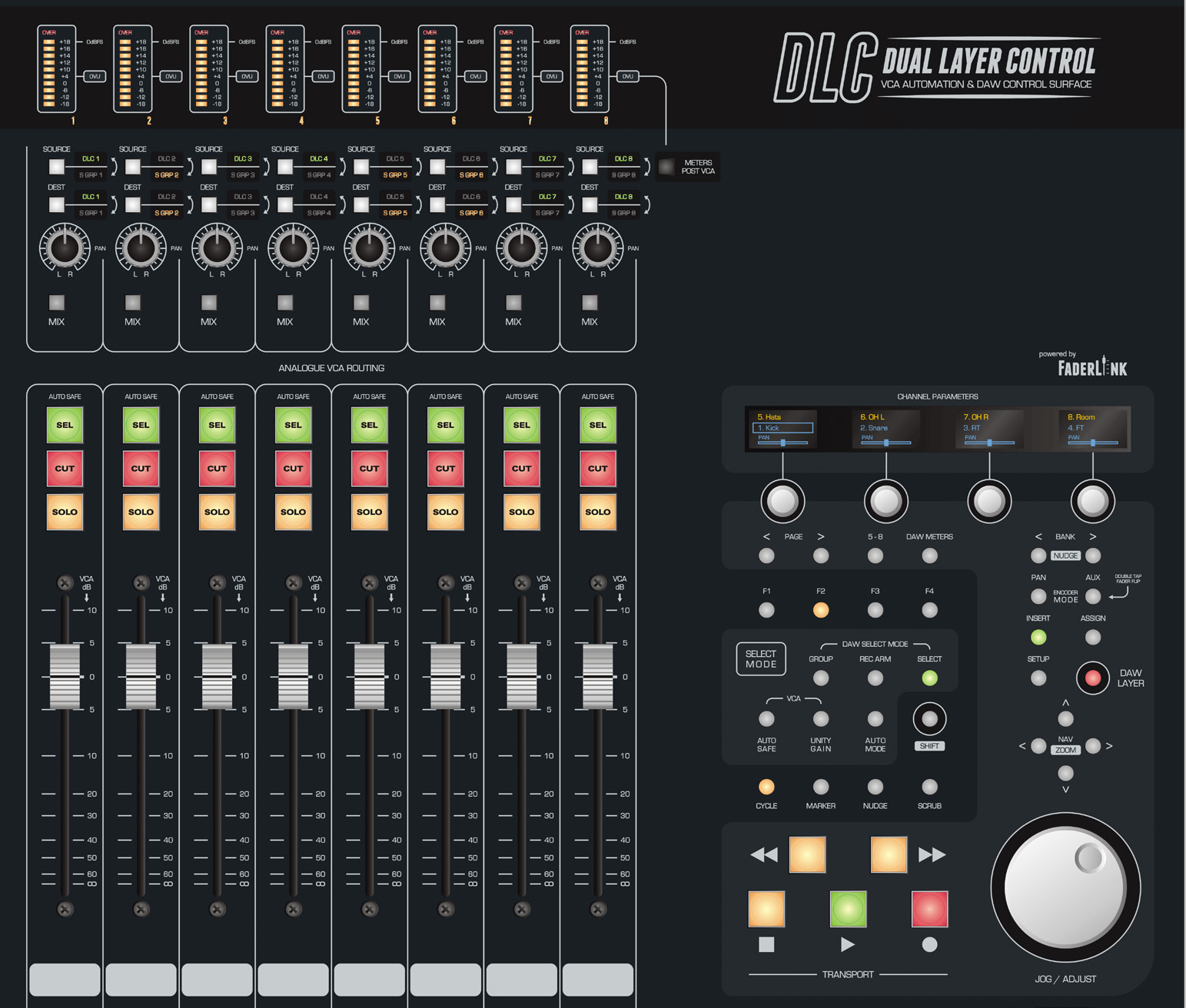
The optional Dual Layer Control (DLC) module combines DAW control and analogue automation in the centre of ASP8024-HE.
Analogue layer
DLC provides eight channels of analogue VCA control with line inputs/outputs and routing to subgroups 1–8. VCA level and Cut movements can be recorded and recalled from the DAW using Audient's Faderlink plug-in.
DAW layer
The DAW layer provides eight bankable faders plus transport, record-enable, pan, send, plug-in and navigation control through the HUI protocol. The DLC section of Manual v1.1 lists Cubase, Nuendo, Logic Pro and Pro Tools; use the current DAW-specific control-surface manuals for exact assignments.
Switch between layers
DLC can change between the analogue and DAW layers without changing the underlying analogue fader levels, allowing DAW adjustments without abandoning the console mix balance.
Software and manuals
Current DLC/Faderlink resources and DAW-specific control-surface manuals are listed on the ASP8024-HE Downloads page.
DLC Mac Installation and Networking
Physical connection
Connect a standard CAT5 Ethernet cable from the DLC Network port on the rear of the console to the Mac or to the same router/network switch as the Mac.
DLC Connect
The Mac workflow uses the DLC Connect application to establish communication and create the MIDI ports required by the DAW.
Download the current package through the ASP8024-HE Downloads page / ARC, install it in Applications and launch it before configuring the DAW control surface.
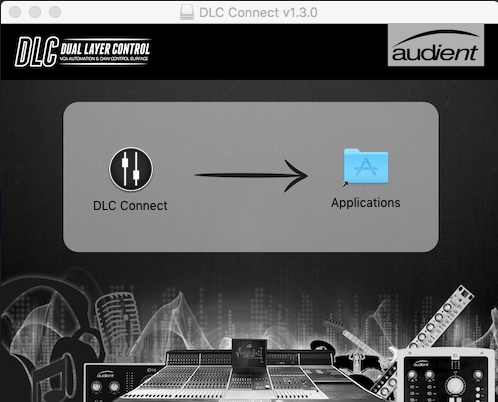
DLC Connect can also be configured to open automatically at login. Current macOS menu names may differ from the legacy screenshots.
Choose DHCP or manual addressing
If DLC is connected to an established network with DHCP, both the Mac and DLC can receive addresses automatically.
For a direct computer-to-console connection, the DLC section of Manual v1.1 describes manual addressing.
Manual Mac address
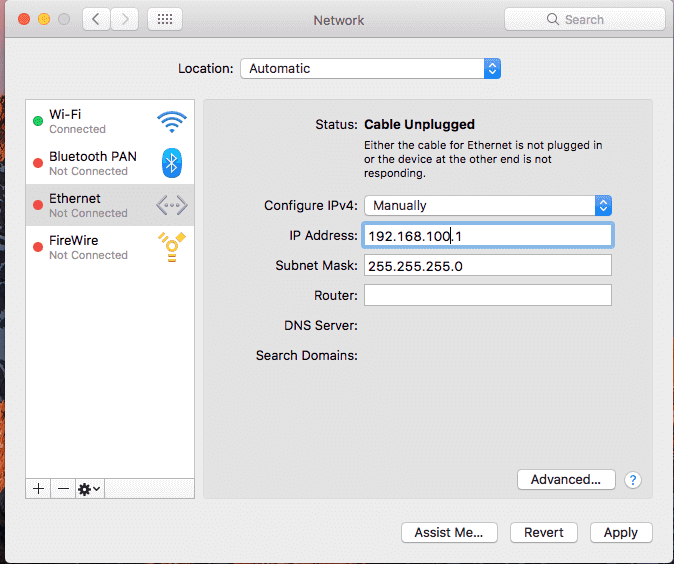
Set the Ethernet adapter to a unique address in the range:
192.168.100.X
where X is 1–254 and is different from the DLC address.
Set:
- Subnet mask: 255.255.255.0
- Router/gateway: leave blank for the direct manual setup described by the source
Manual DLC address
- Press SETUP on DLC.
- Page to the network settings and set Use DHCP = NO.
- Set a different 192.168.100.X address.
- Set subnet mask to 255.255.255.0.
- Set port to 1212.
- Press SETUP again to save and exit.
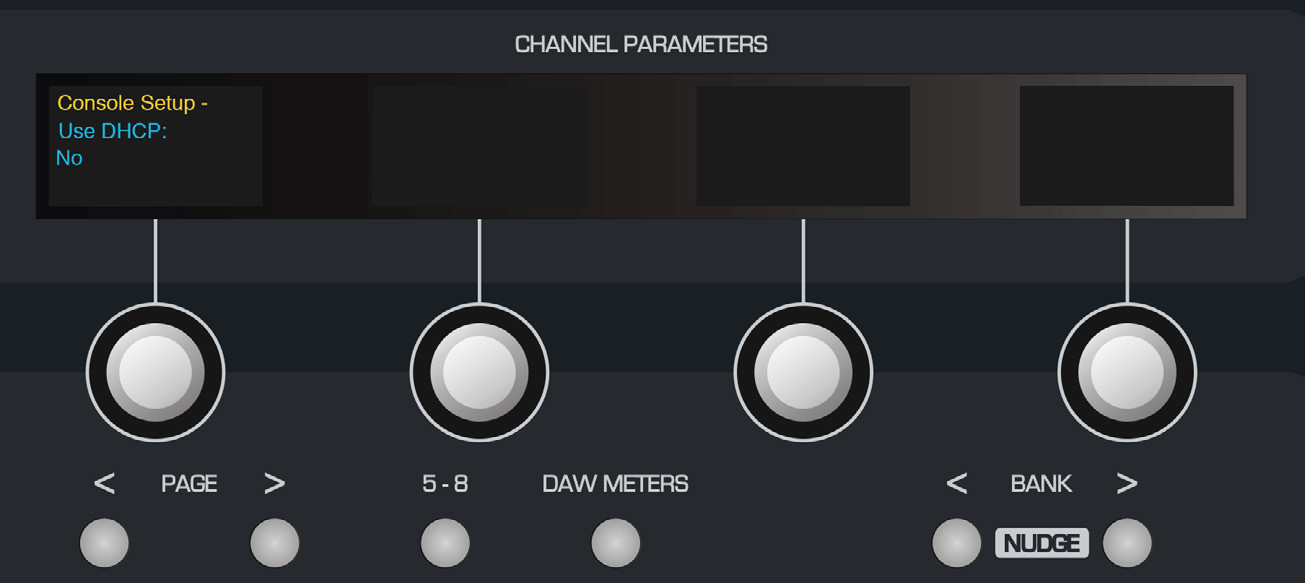
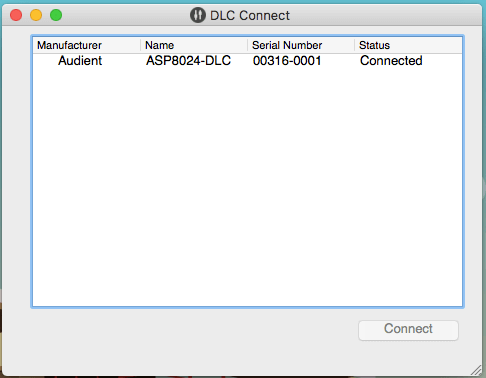
After changing network settings, reboot the console and computer, open DLC Connect, select the console and connect. A connected status icon indicates successful communication.
DHCP
Set Use DHCP = YES on the DLC and configure the Mac Ethernet interface for DHCP. Both devices must be on the same network.
Continue to DLC Windows Setup.